
NOTE:-
To create a pilot, a user must be created first.
If not signed in, kindly sign in into FBO Master.
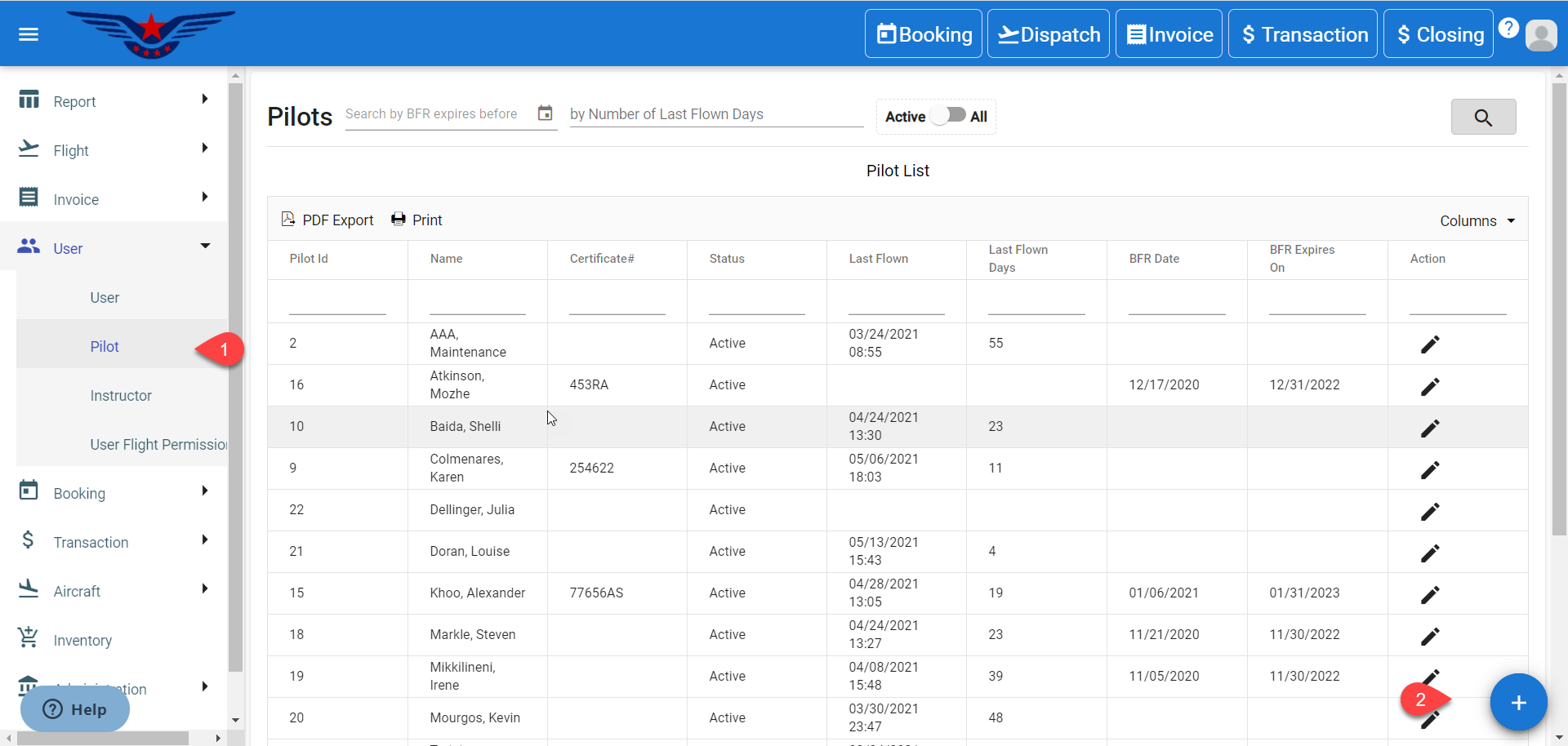
1. Click on the hamburger icon on the top left corner on the navigation bar to open side navigation. Select the User main menu. Click on the Pilot sub main menu.
2. Pilot list will be displayed, click on the (+) button on the bottom right corner of the screen.
OR
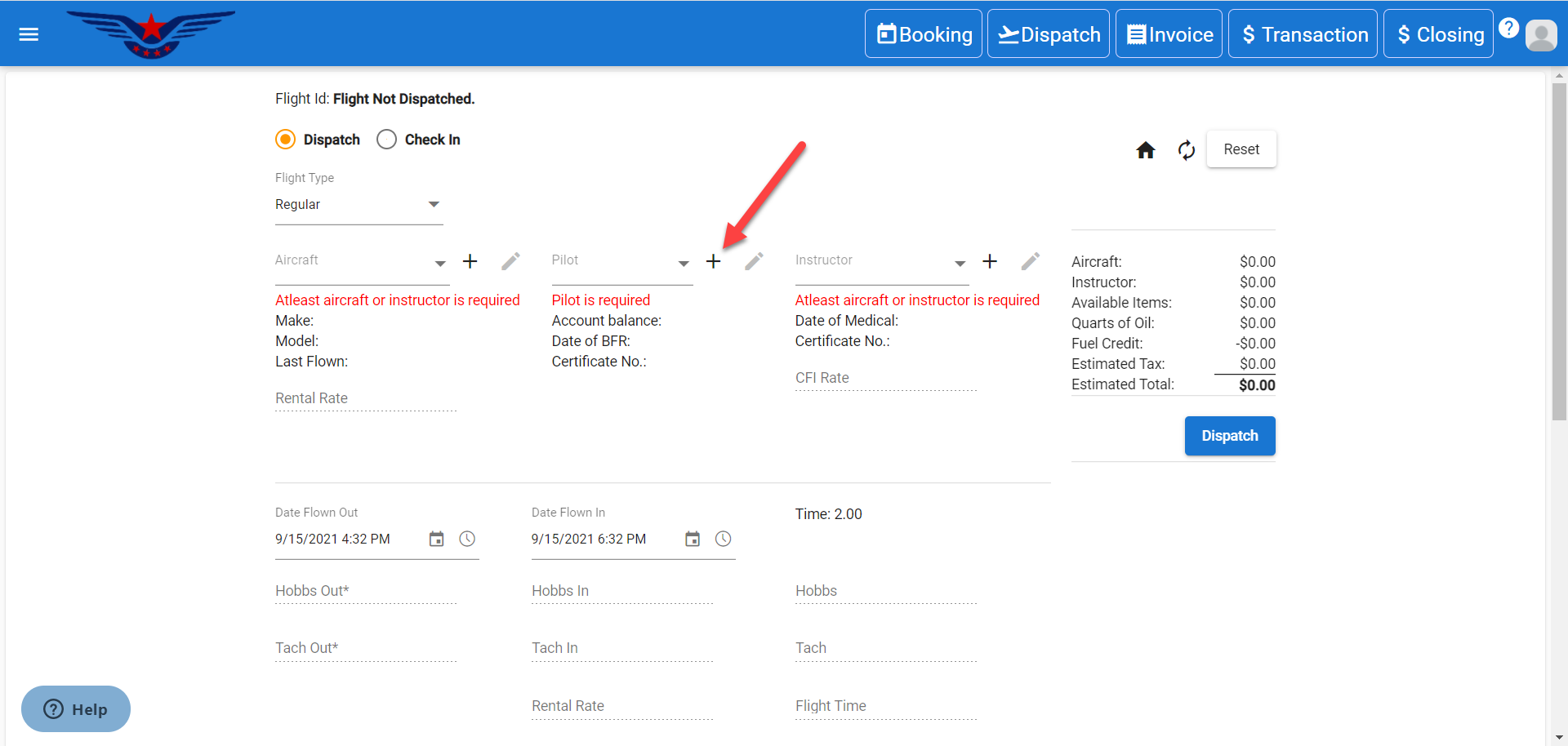
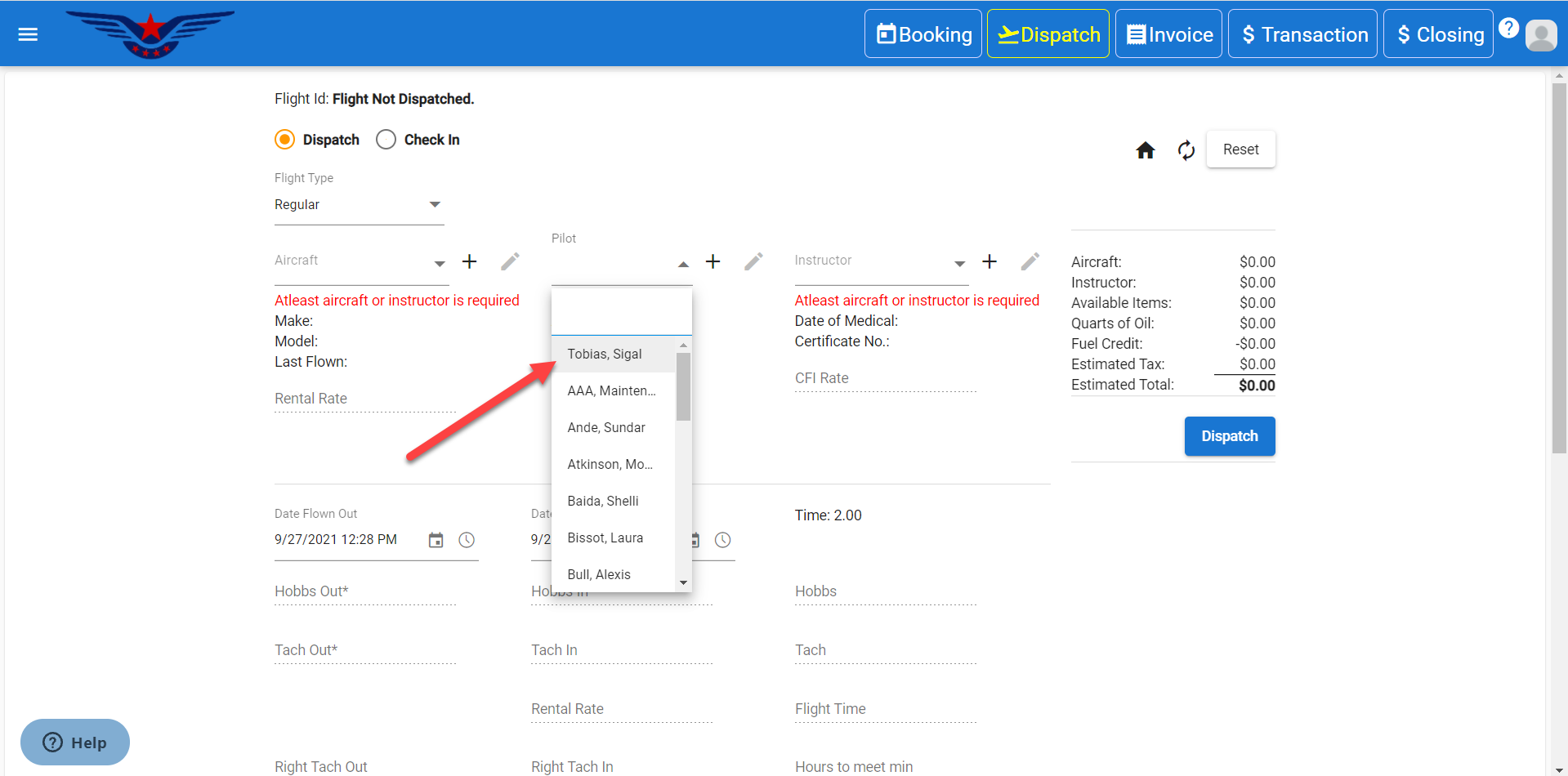
Click on the + icon on the right side of Pilot drop down list on Dispatcher.
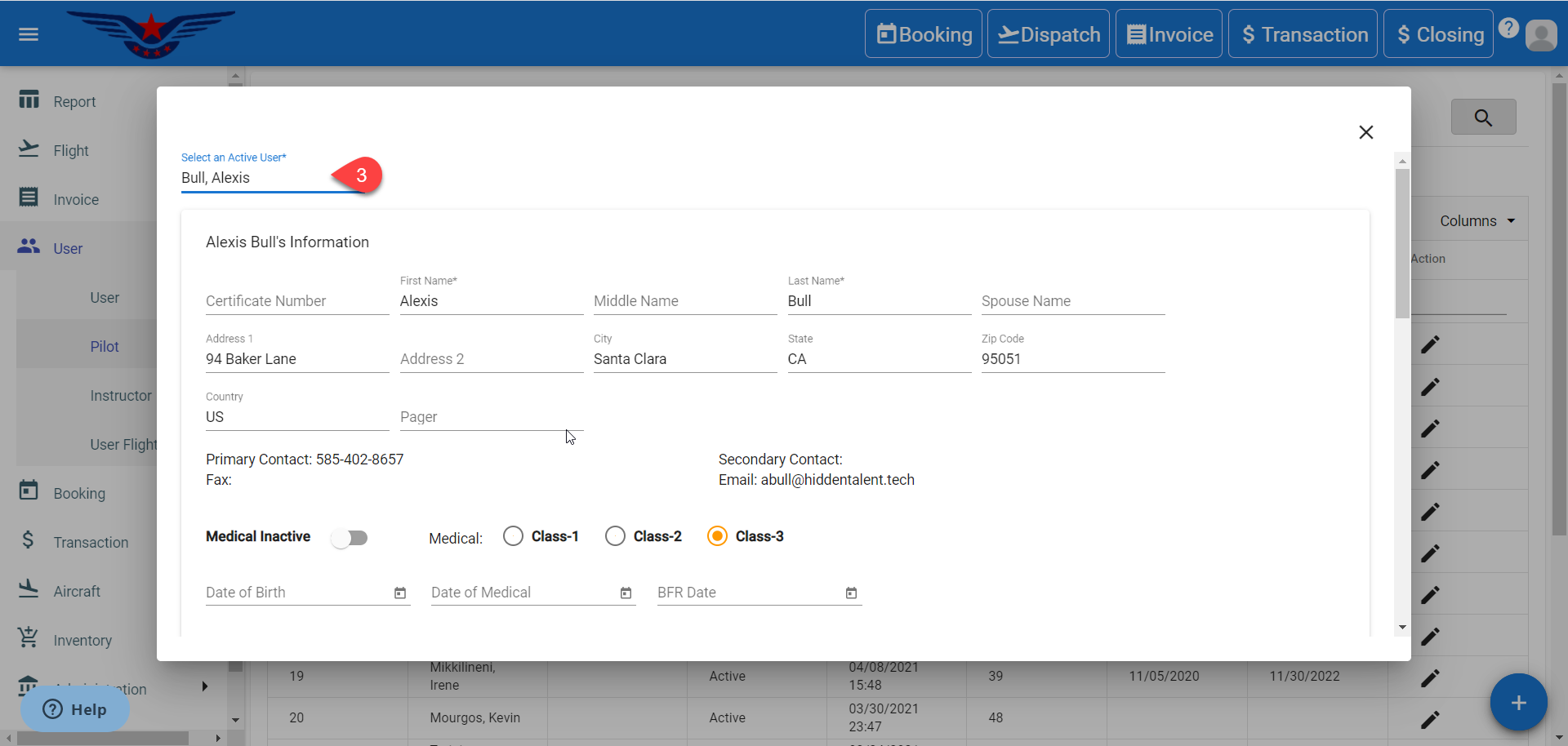
3. Select an active user from Select an Active User drop down list, all the User’s information will be auto filled.
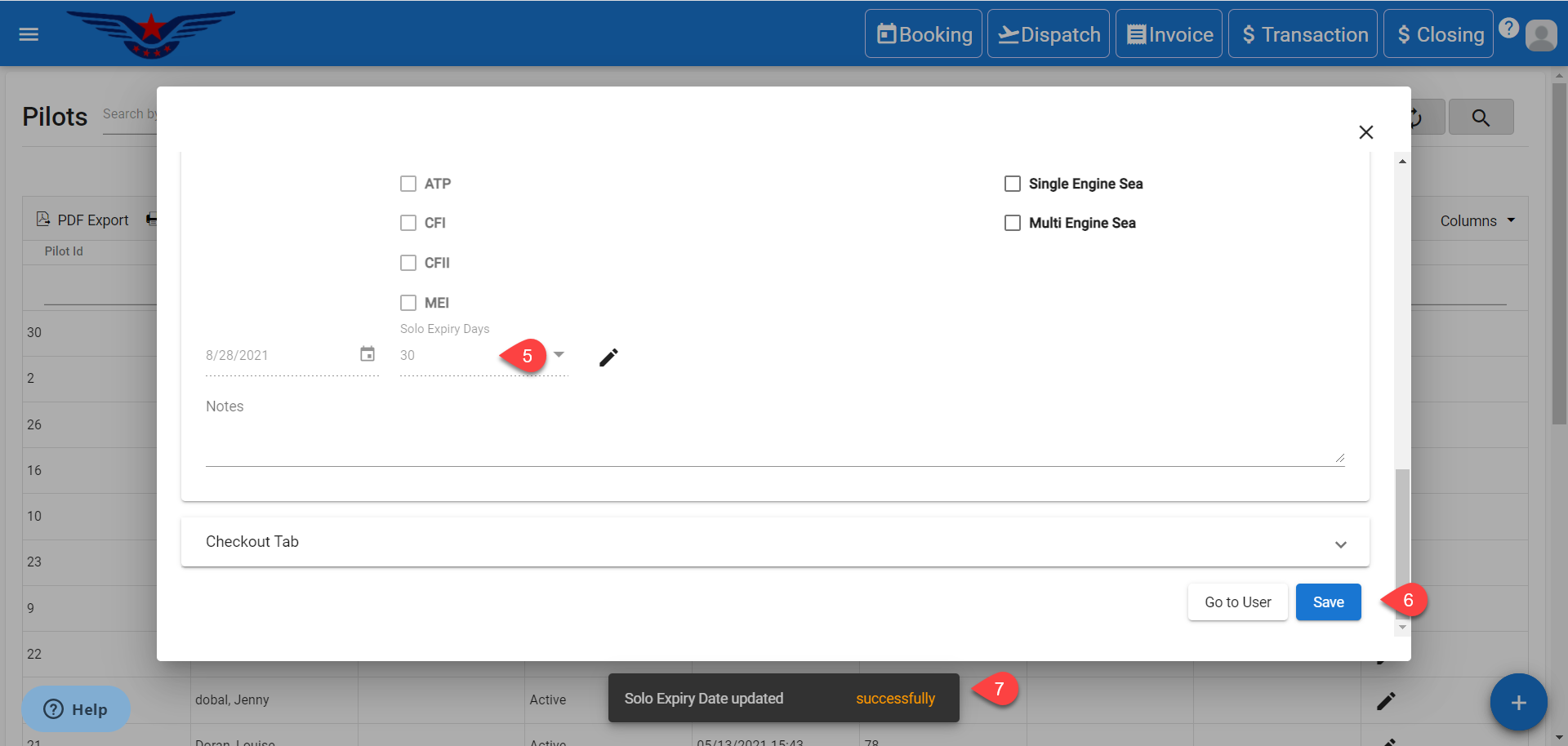
4. To set solo expiry days, click on the Student checkbox from Certificates, all the other options will be disabled. Click on the Pen icon.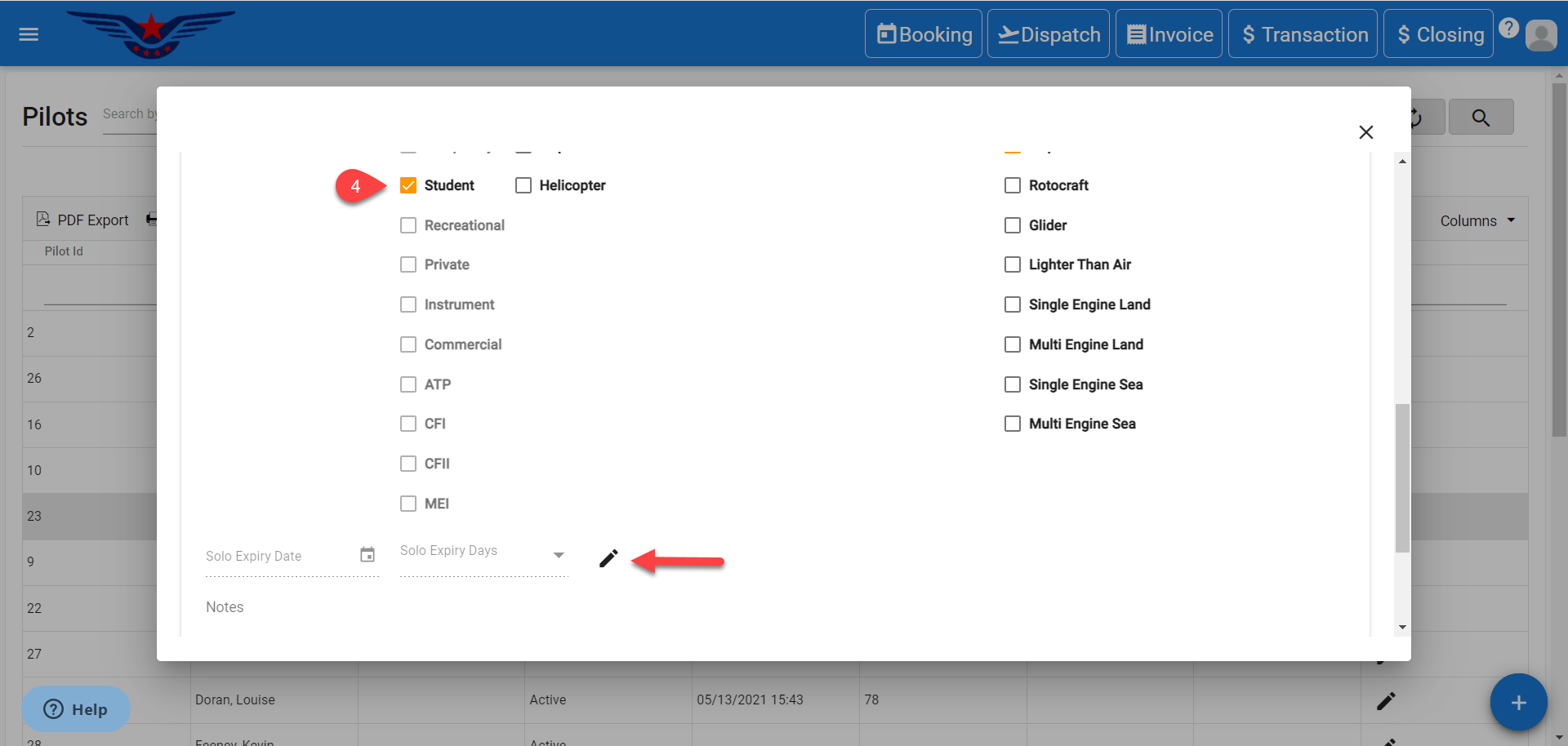
5. Select solo expiry day from Solo Expiry Days drop down list. Then, Solo Expiry Date will be auto filled according to solo expiry days.
6. Click on the Save button.
7. Pilot created successfully and solo expiry date updated message will be displayed.
NOTE:
If the pilot is created from the dispatcher, the pilot added will be immediately visible in the Pilot drop down list at the top and later, it will be arranged in alphabetical/ numerical order.
Comments
0 comments
Please sign in to leave a comment.