
If not signed in, kindly sign in into FBO Master.
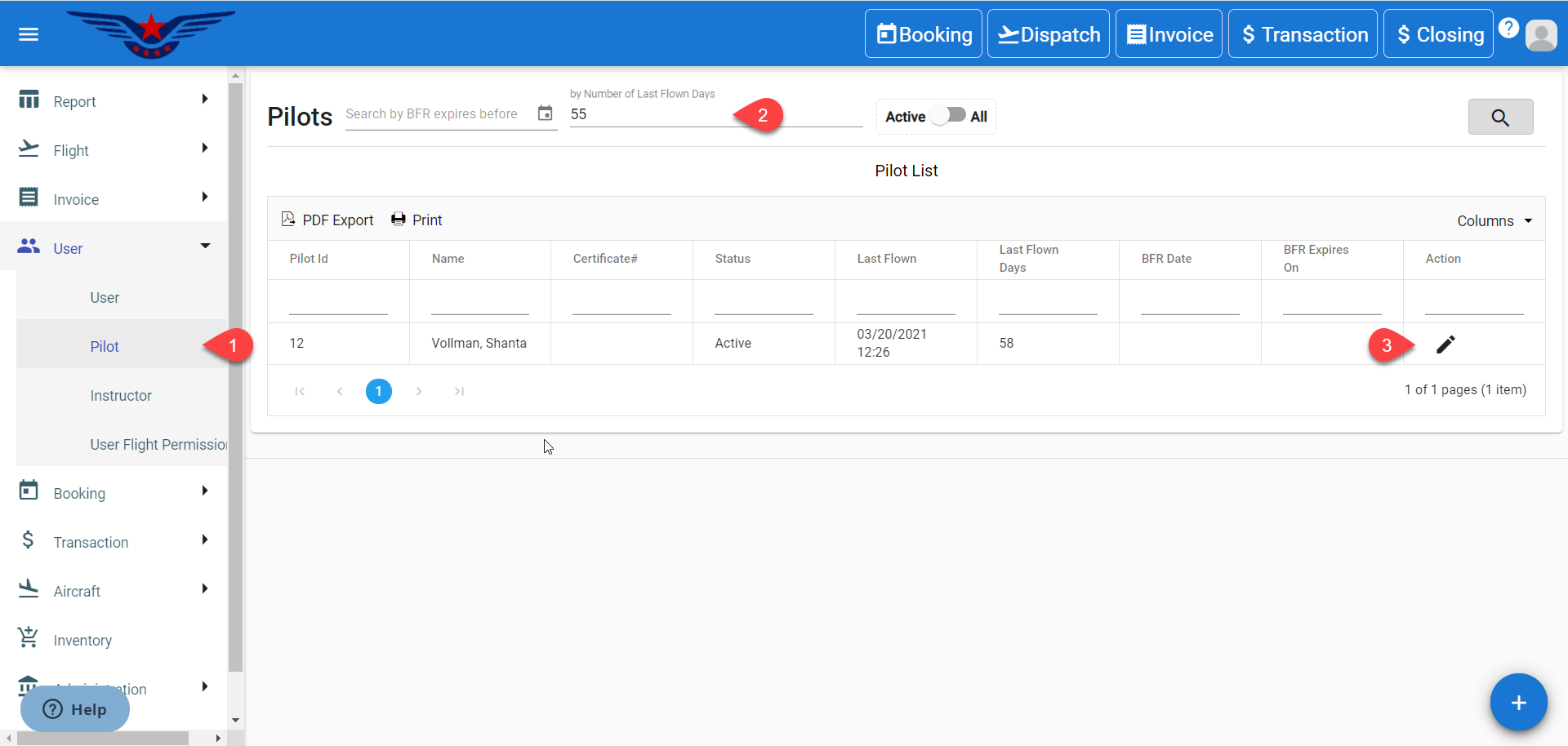
- Click on the hamburger icon on the top left corner on the navigation bar to open side navigation. Select the User main menu. Click on the Pilot sub main menu.
- Pilot list will be displayed. Either navigate the list or search by BFR expires before, Number of last flown days, Name, Active/Inactive status, Last flown or Last flown days to get to any particular user with ease.
- Click on the Pen icon under the Action column of the list.
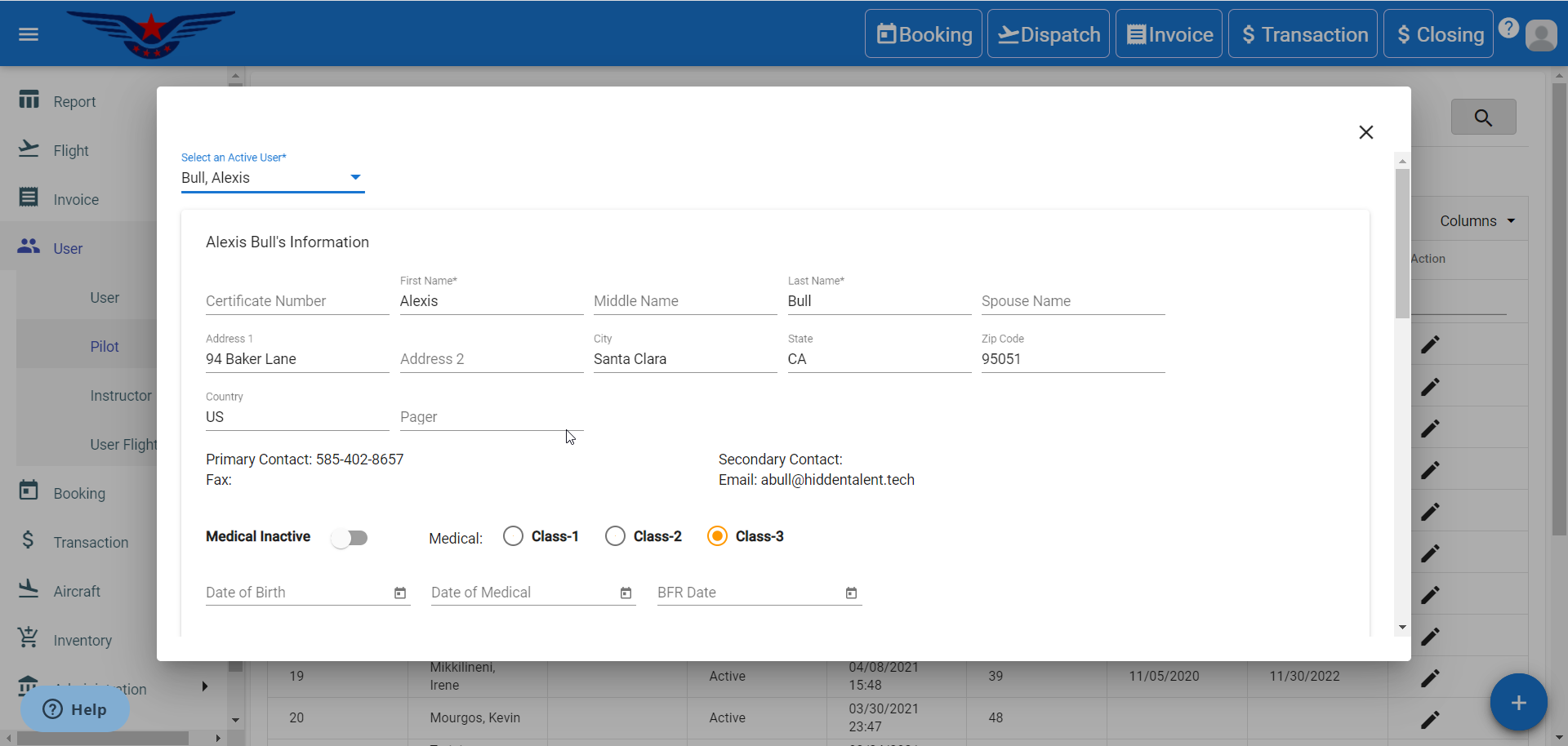
- Pilot’s information sheet will pop up. Edit any existing information or fill in any additional information as per pilot’s choice.
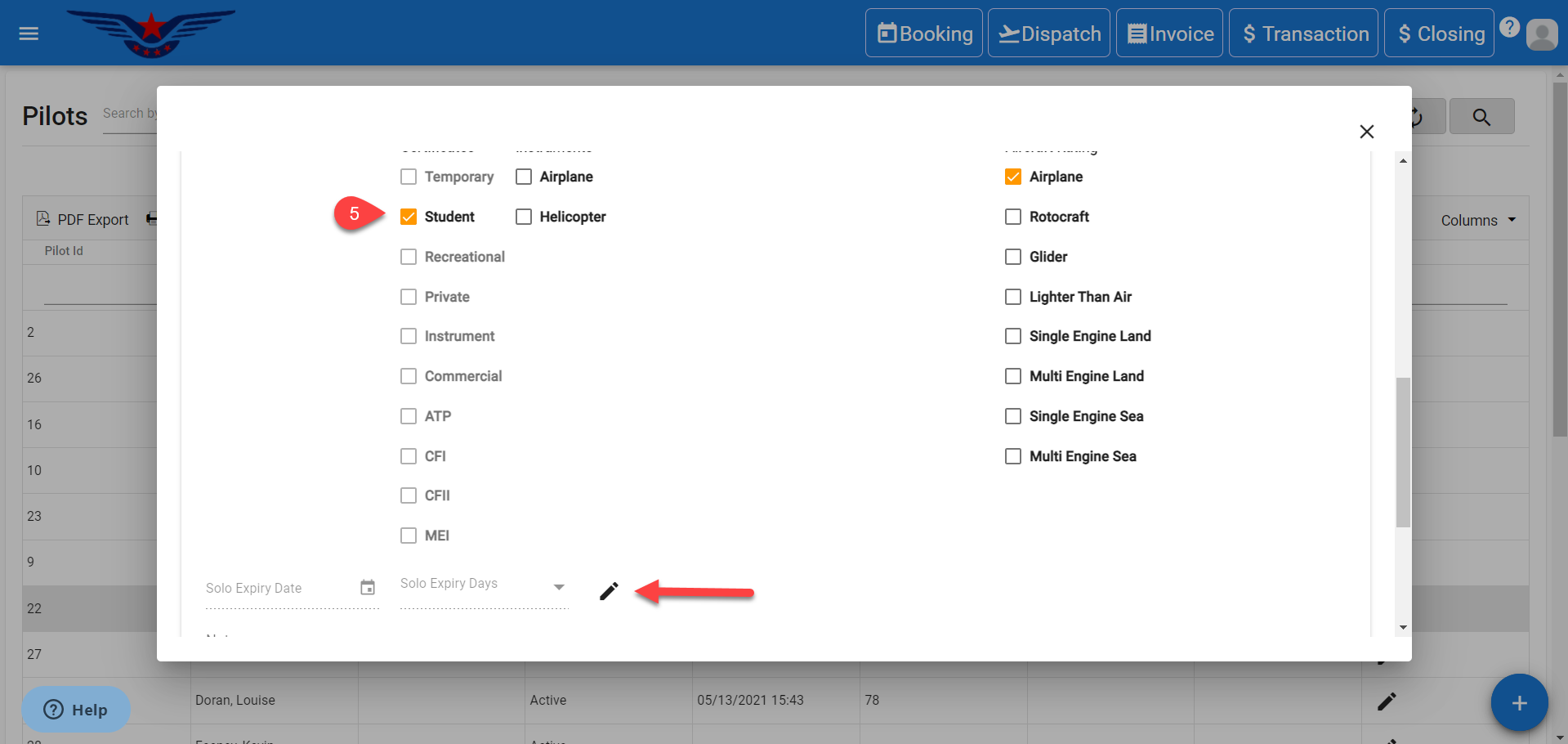
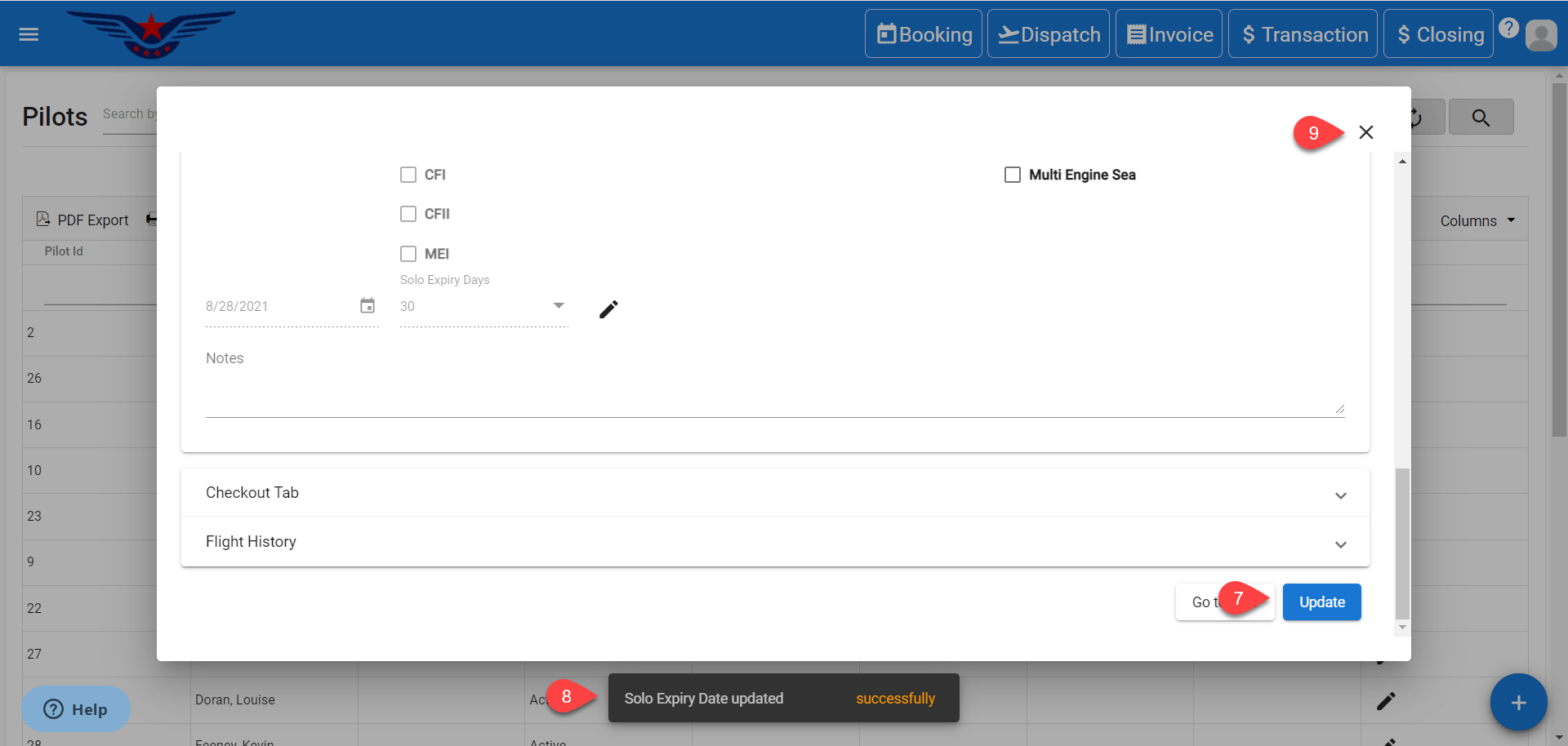
- If Student checkbox is selected from Certificates, all the other options will be disabled. Click on the Pen icon.
- Select solo expiry day from Solo Expiry Days drop down list. Then, Solo Expiry Date will be auto filled according to solo expiry days.
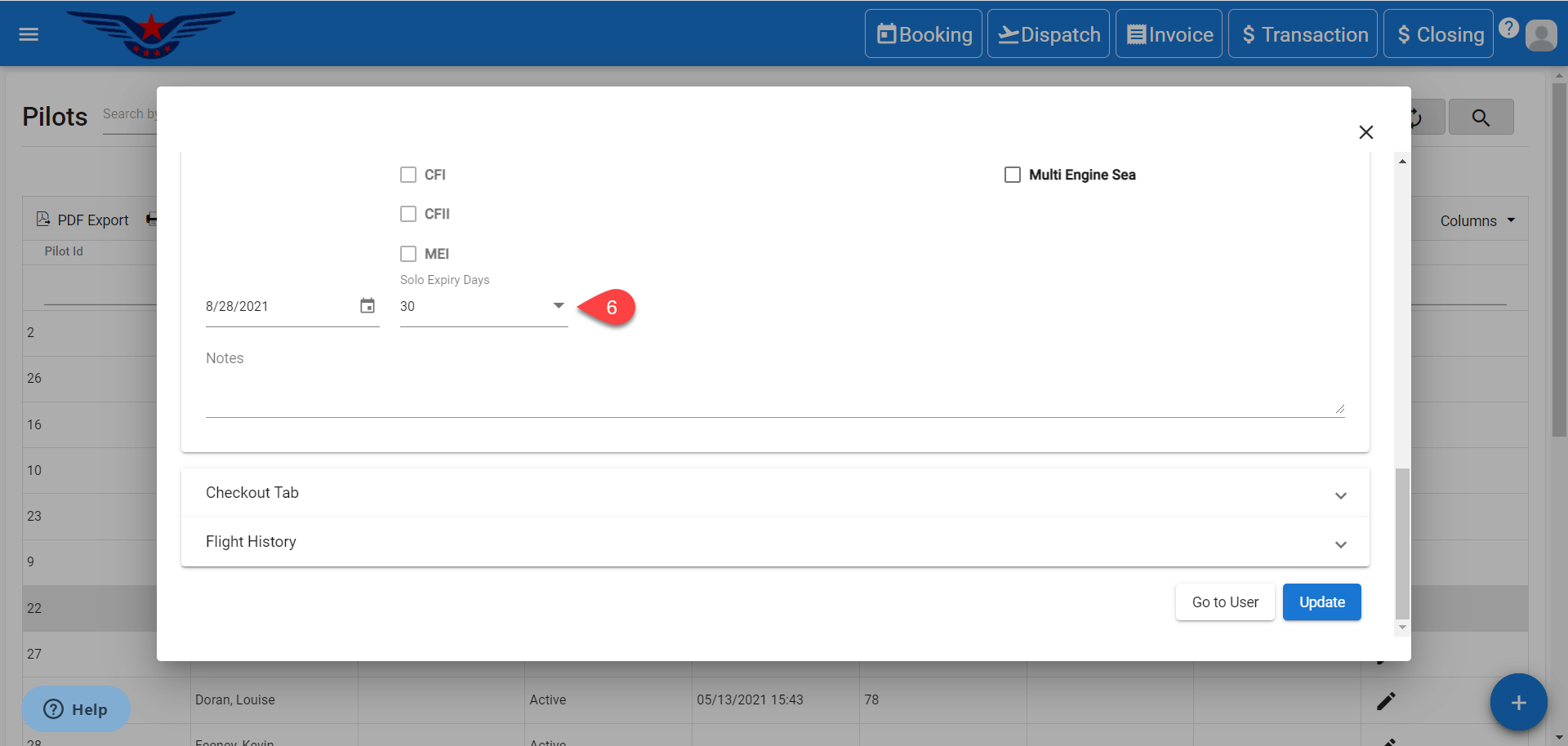
- Click on the Update button.
- Pilot detail updated and solo expiry date updated successfully message will pop up on the bottom center of the screen.
- Click on the X icon to close the pop up.
 NOTE:Click on the Status* toggle button to Activate/ Inactivate a pilot. By default, pilots are activated.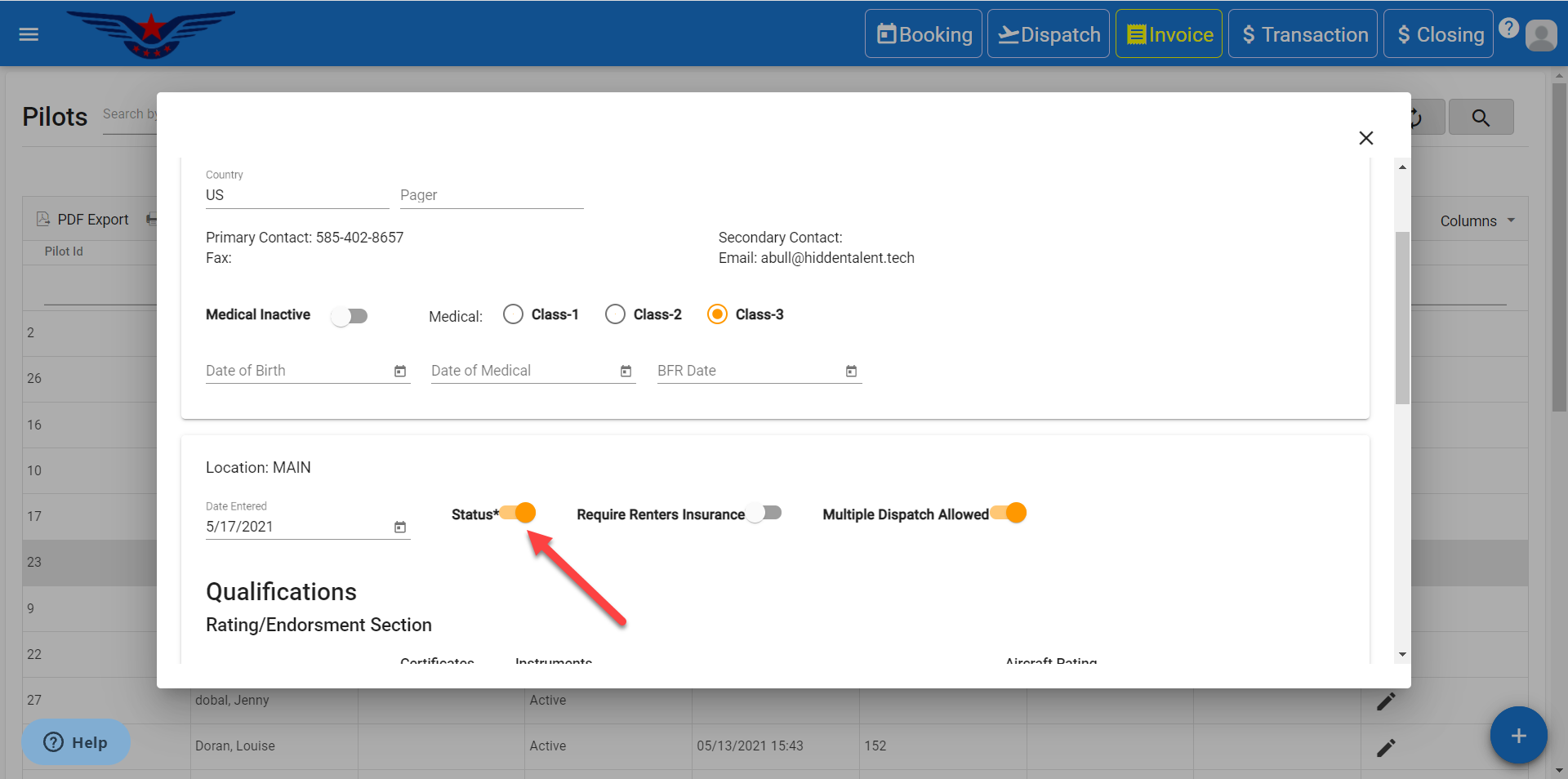
Comments
0 comments
Please sign in to leave a comment.