
For example, Aircraft Flown Hours report is to be printed.
If not signed in, kindly sign in into FBO Master.
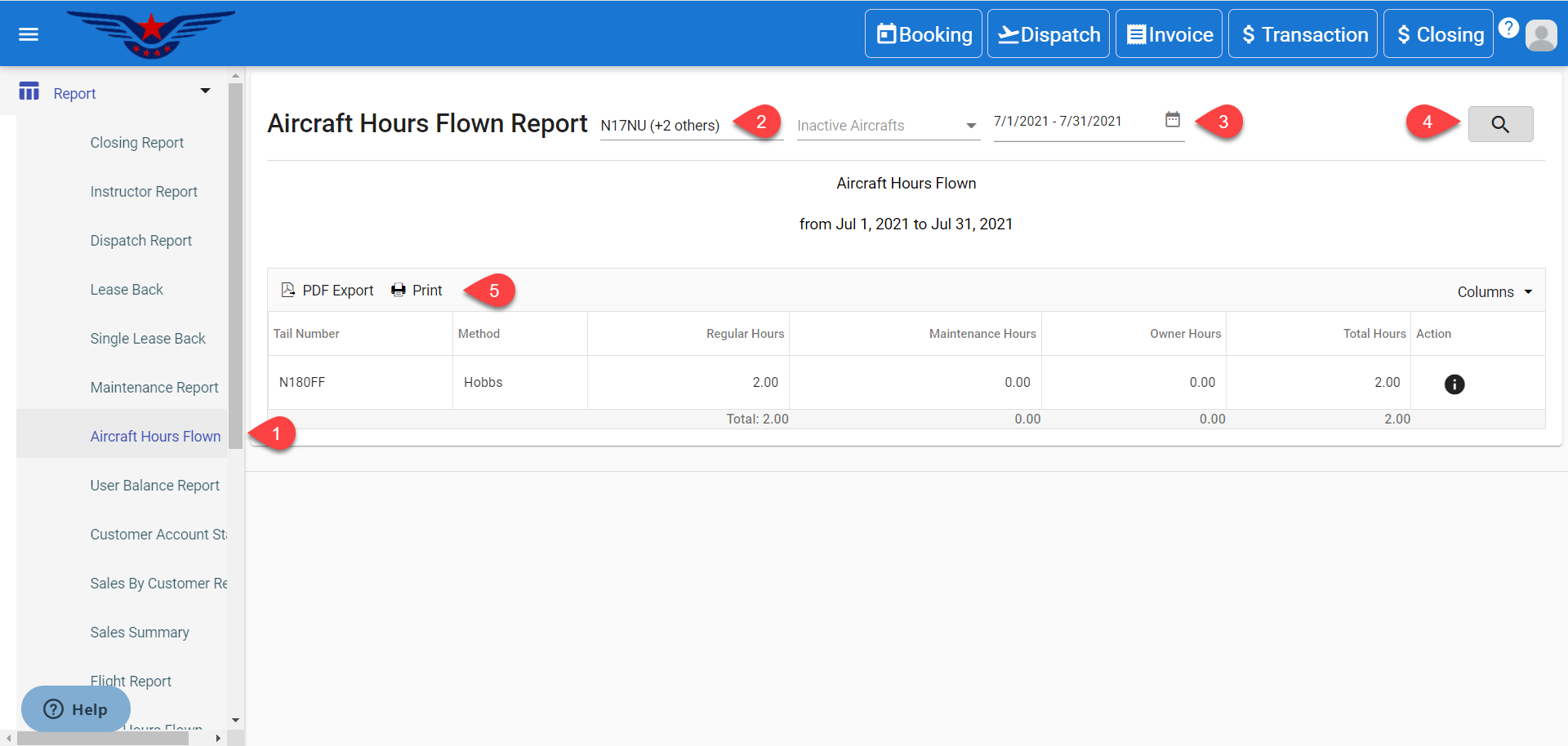
- Click on the hamburger icon on the top left corner of the navigation bar. Select Report main menu. Click on the Aircraft Flown Hours sub menu.
- Aircraft Flown Hours Report will be displayed. Select an Active/ Inactive Aircraft from Active/ Inactive Aircraft drop down list.
- Select the Date Range for which User Balance Report is to be viewed. Click on Search button.
- Click on the Print to print the report and PDF Export to export the report in PDF form.
- Select the Column(s) which is to be viewed from Column drop down list.
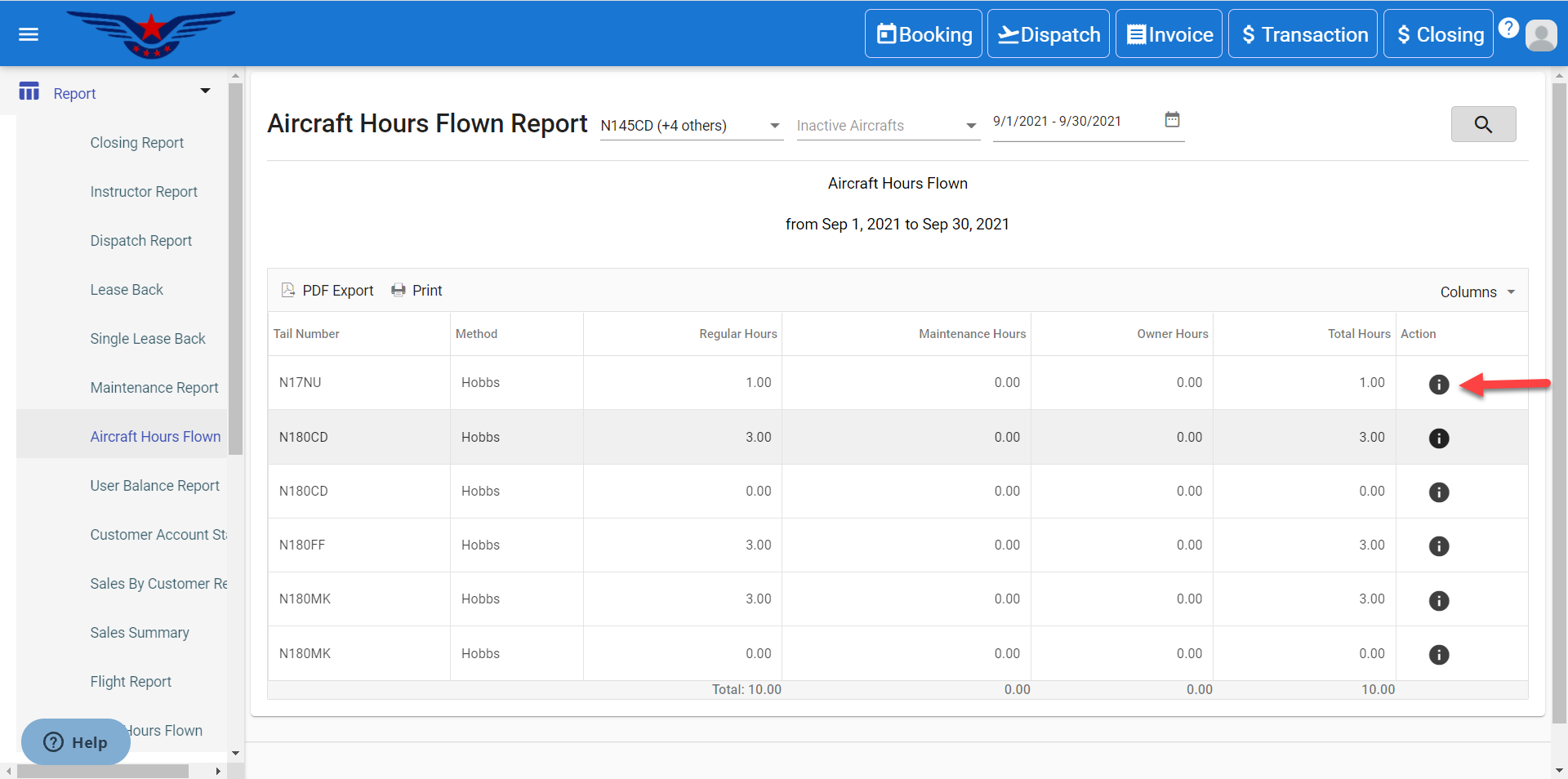
- Click on the i icon under the Action column corresponding to desired aircraft.
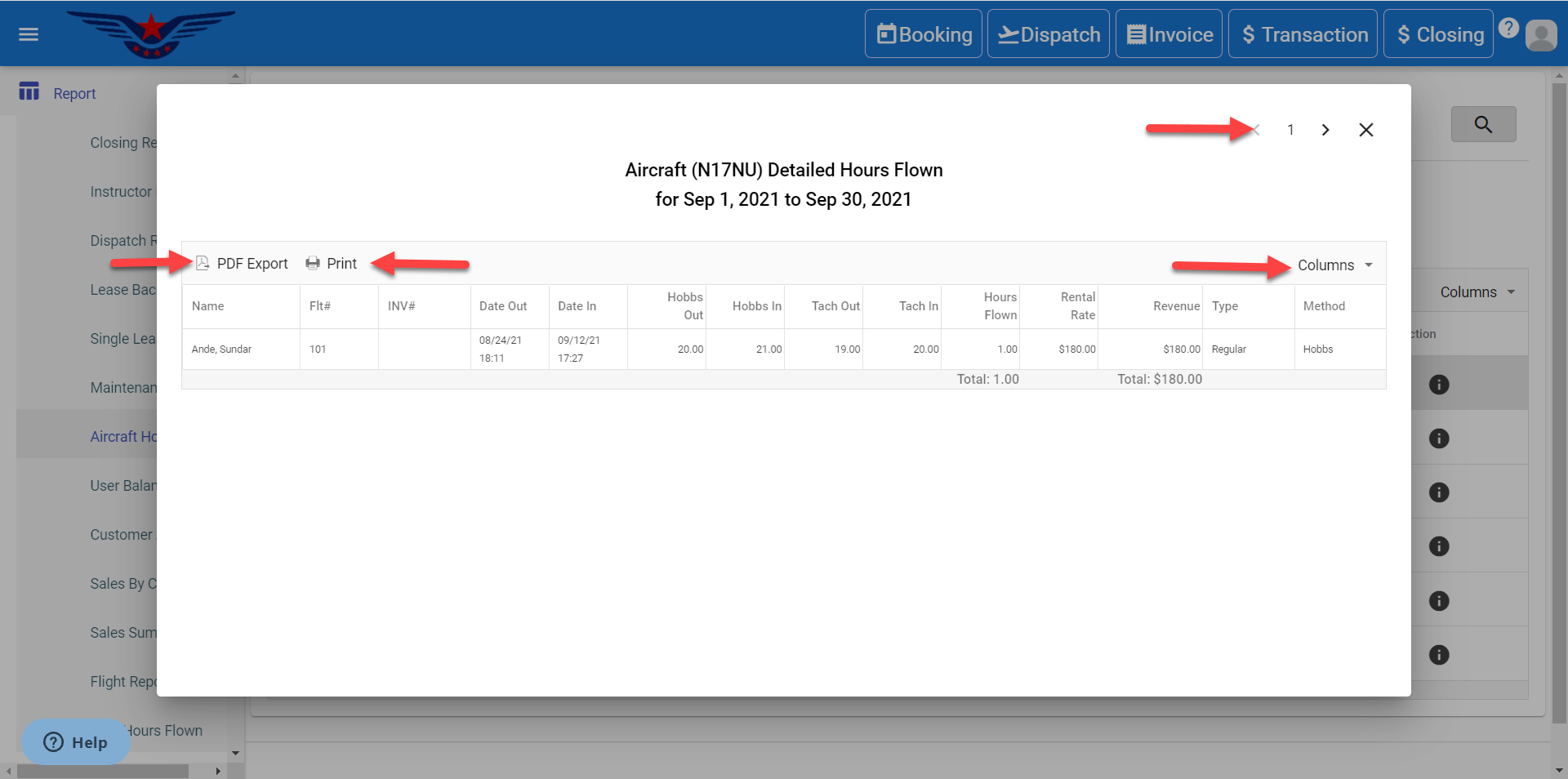
- The report can be printed. PDF Export can also be done. List can be customized with desired columns as well. To navigate through other Aircraft's Hours Flown information, click on <, > icons.
 NOTE : In case any issue occurs while printing the report, uninstall the existing Google Chrome version and download the working version from following link https://www.neowin.net/news/google-chrome-v900443072-offline-installer/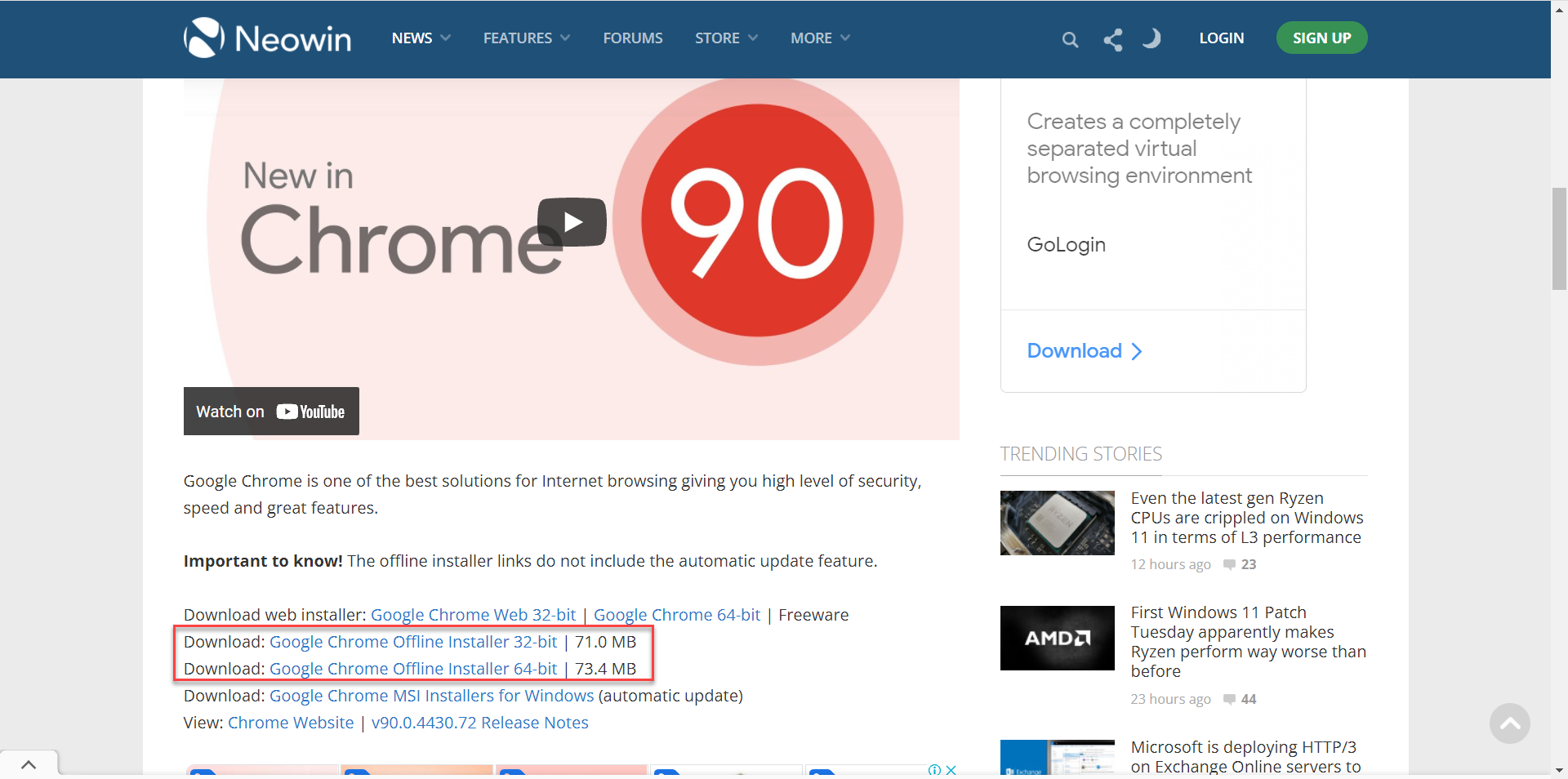
Comments
0 comments
Please sign in to leave a comment.