
If not signed in, kindly sign in into FBO Master.
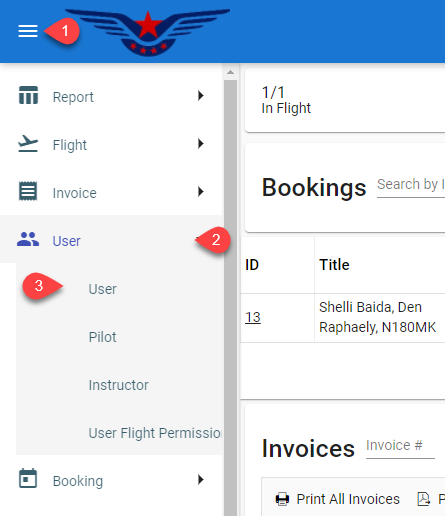
- Click on the hamburger icon on the top left corner of the navigation bar[1]. Select User main menu[2]. Click on the User sub main menu[3].
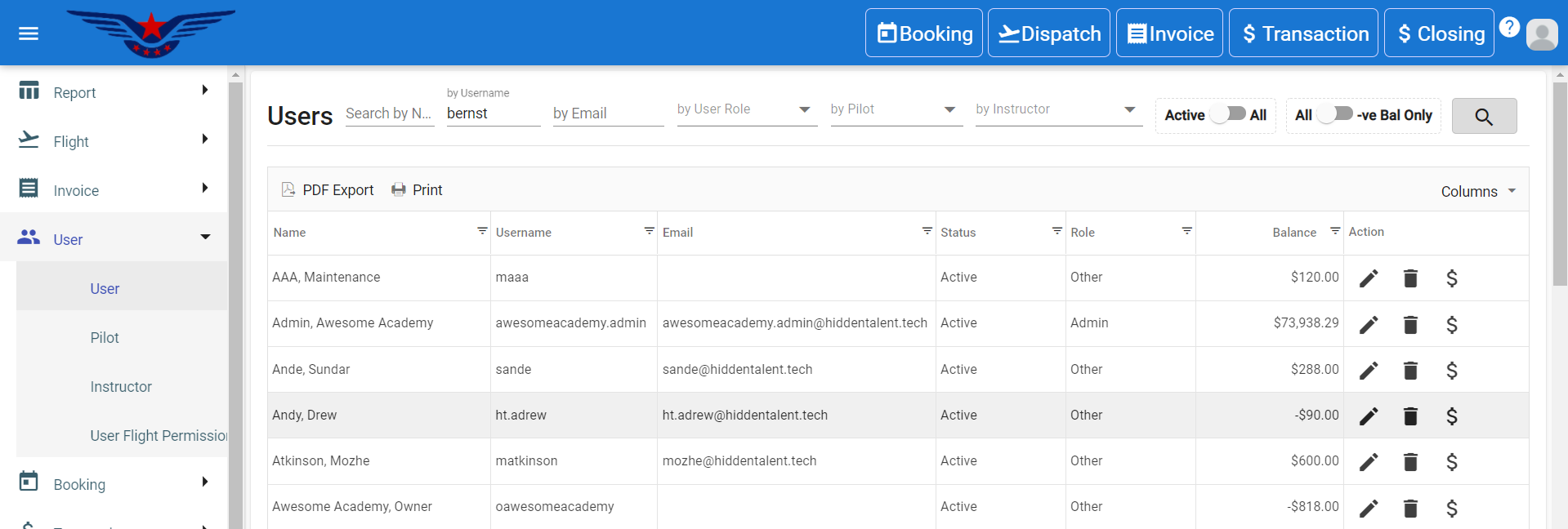
- User list will be displayed on the screen.
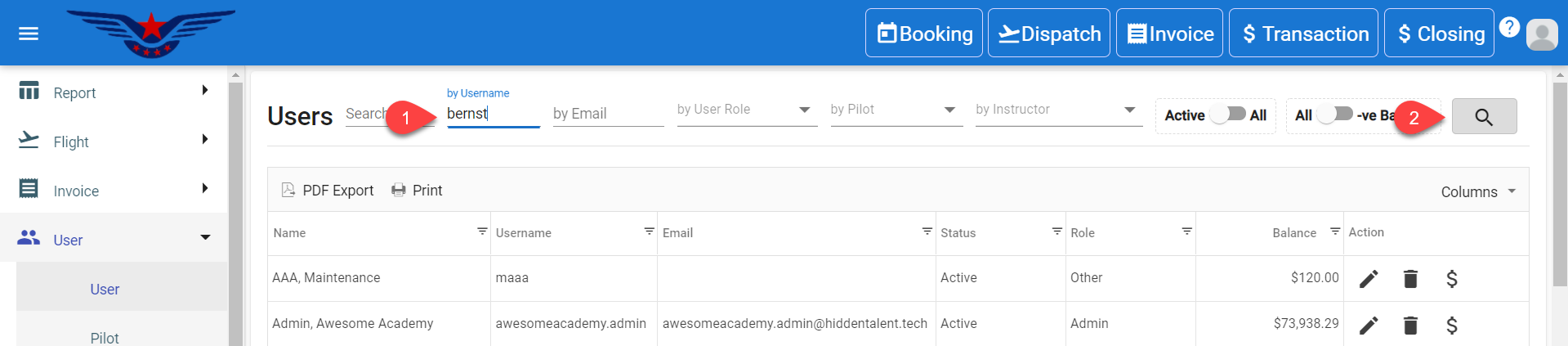
- Either navigate the list or search by the first name/ last name/ email/ user role to find the desired user with ease[1]. Click on the Search icon[2].
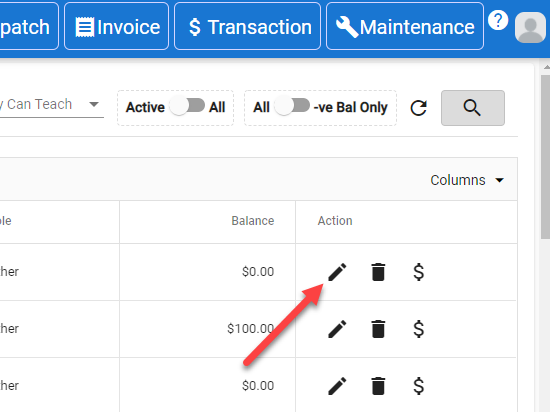
- Click on the Pen icon under the action column of the user list.
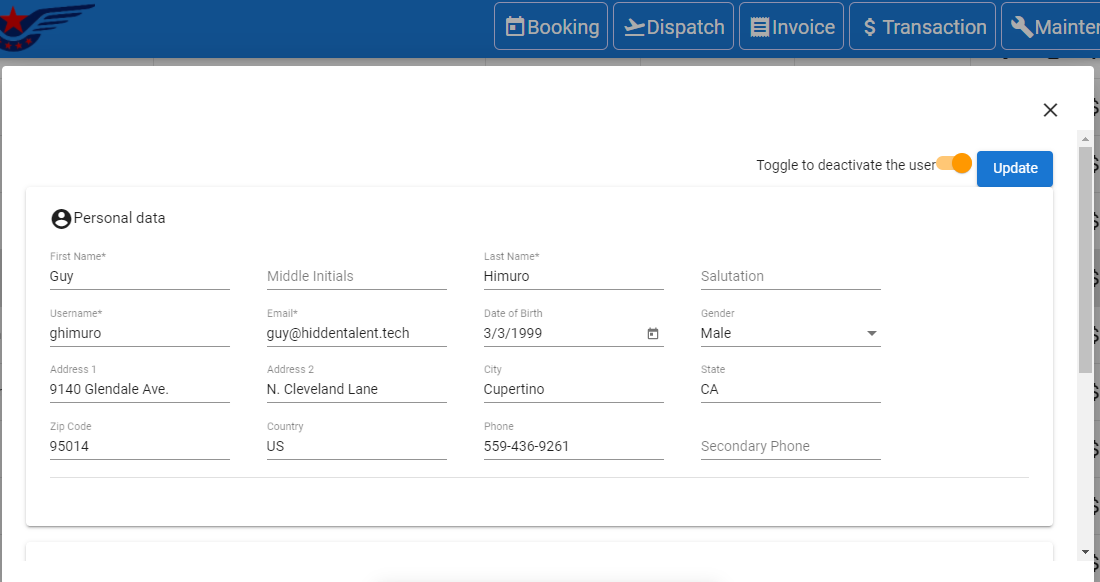
- Personal Data sheet will pop up, user’s information will be auto filled.
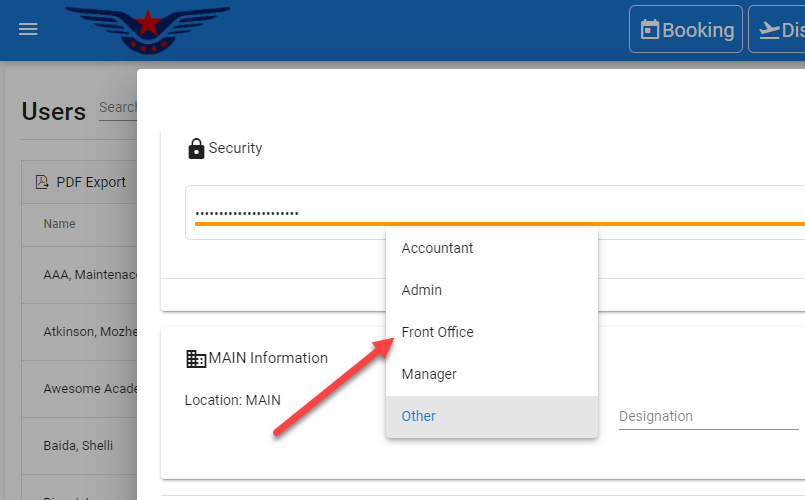
- Select Front Office from the Role drop down list.
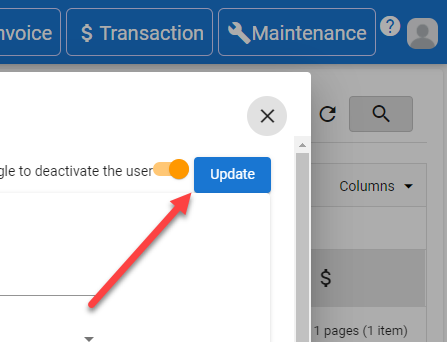
- Click on the Update button.
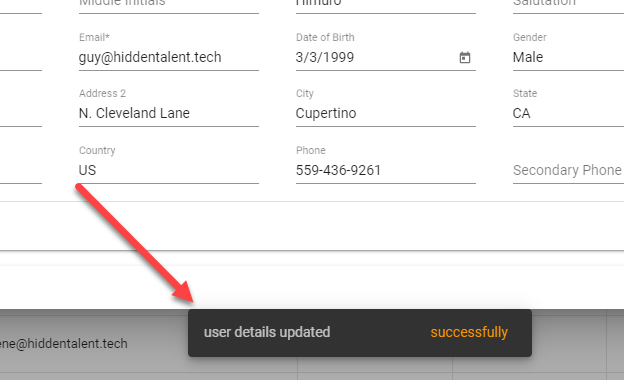
- User details updated successfully message will pop up on the bottom center of the screen.
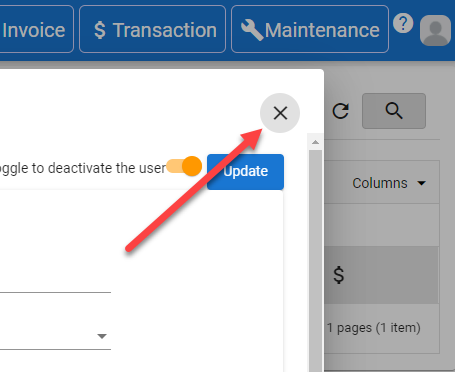
- Click on the X to close the personal data sheet.
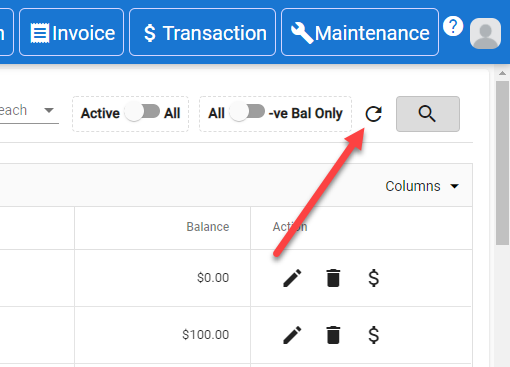
- Refresh the list to view the latest updated data.
Comments
0 comments
Please sign in to leave a comment.