
If not signed in, kindly sign in into FBO Master.
1. Invoice list is displayed on the dashboard.
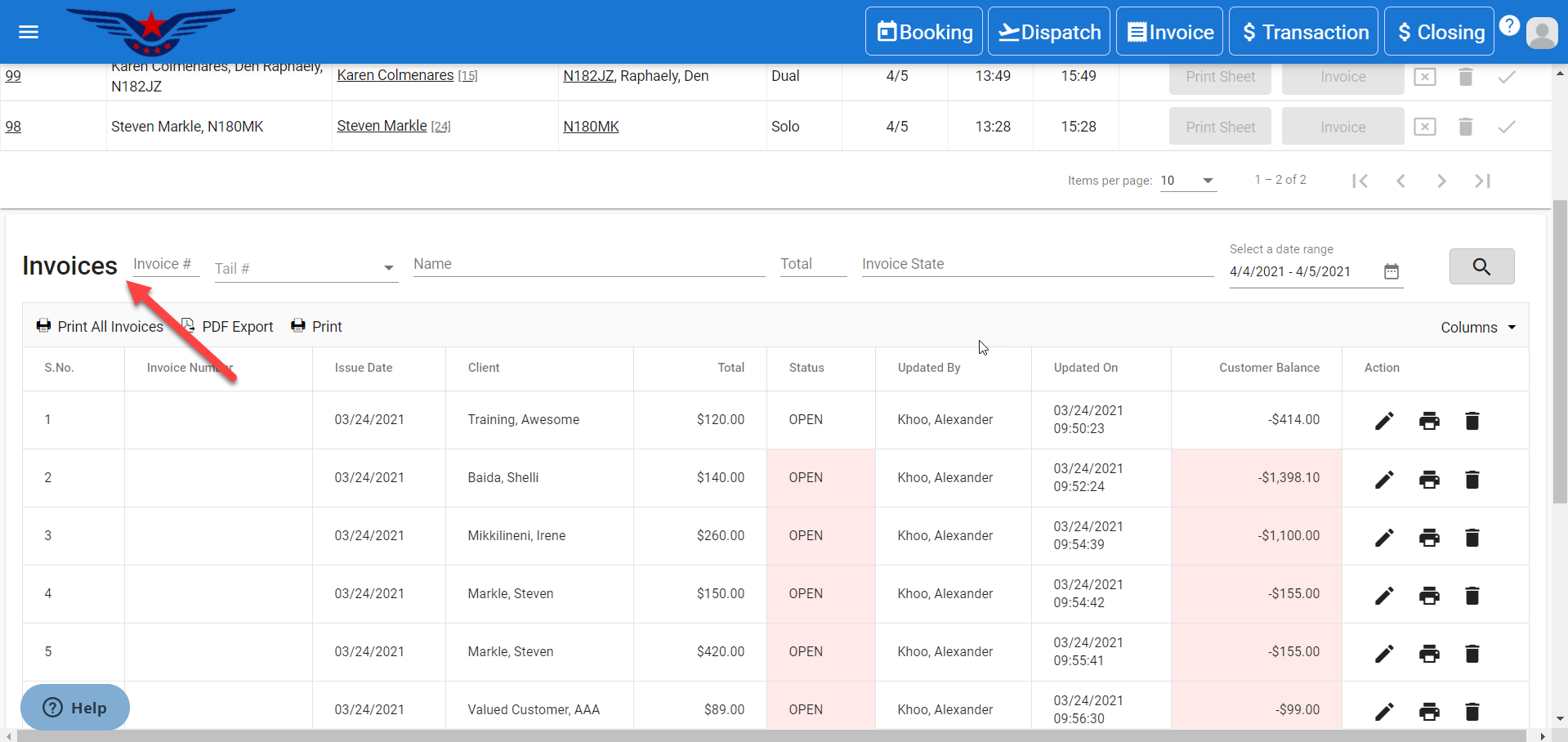
OR
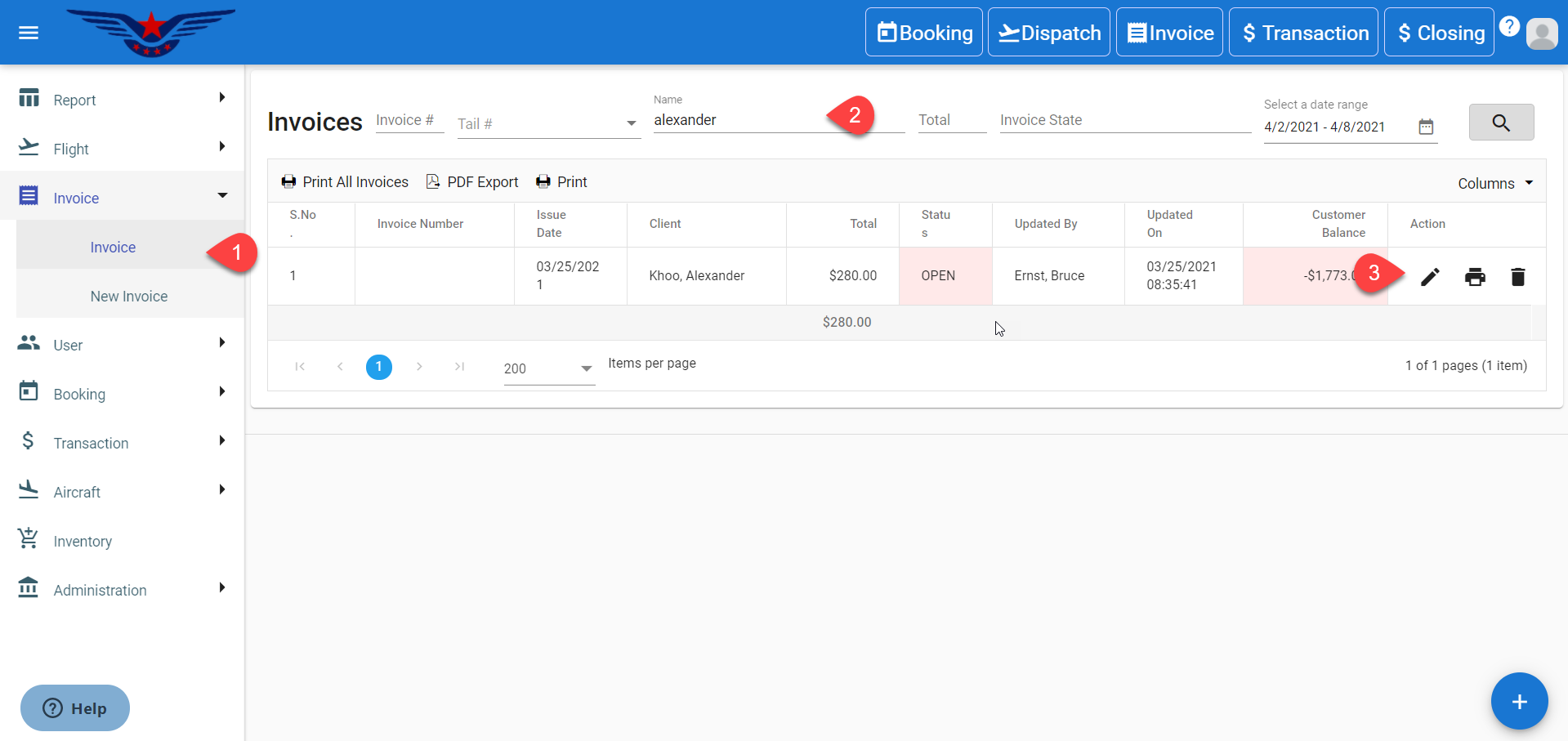
Click on the hamburger icon on the top left corner of the navigation bar. Select the Invoice main menu. Click on the Invoice sub menu.
2. Invoice list will be displayed. Either navigate the list or search in the list by Tail Number, Invoice Number, Name, Total, Invoice State, Date range.
3. Click on the Pen icon under the Action column of the Invoice list.
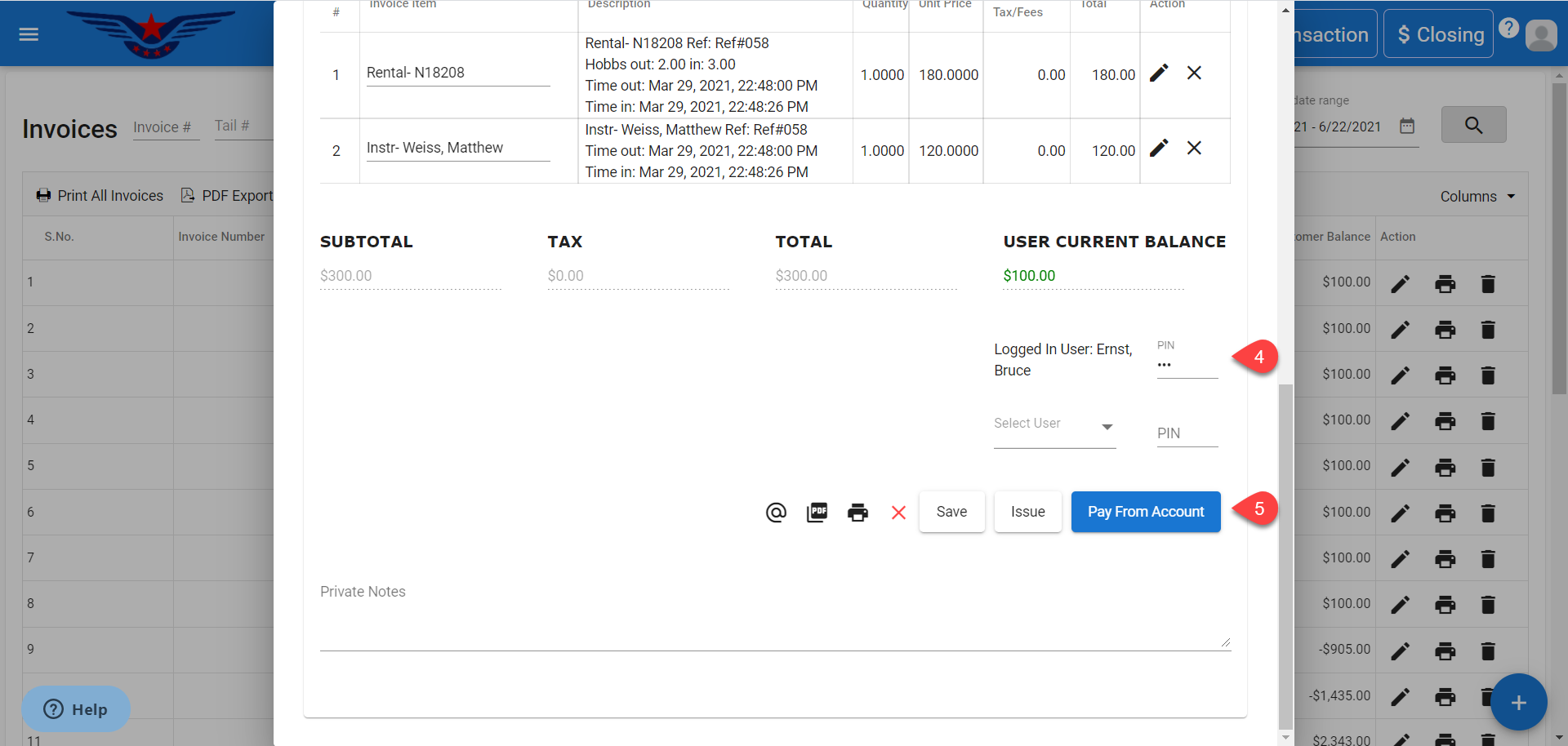
4. Invoice sheet will be displayed. Enter the User's PIN to pay from account.
5. Click on the Pay From Account button.
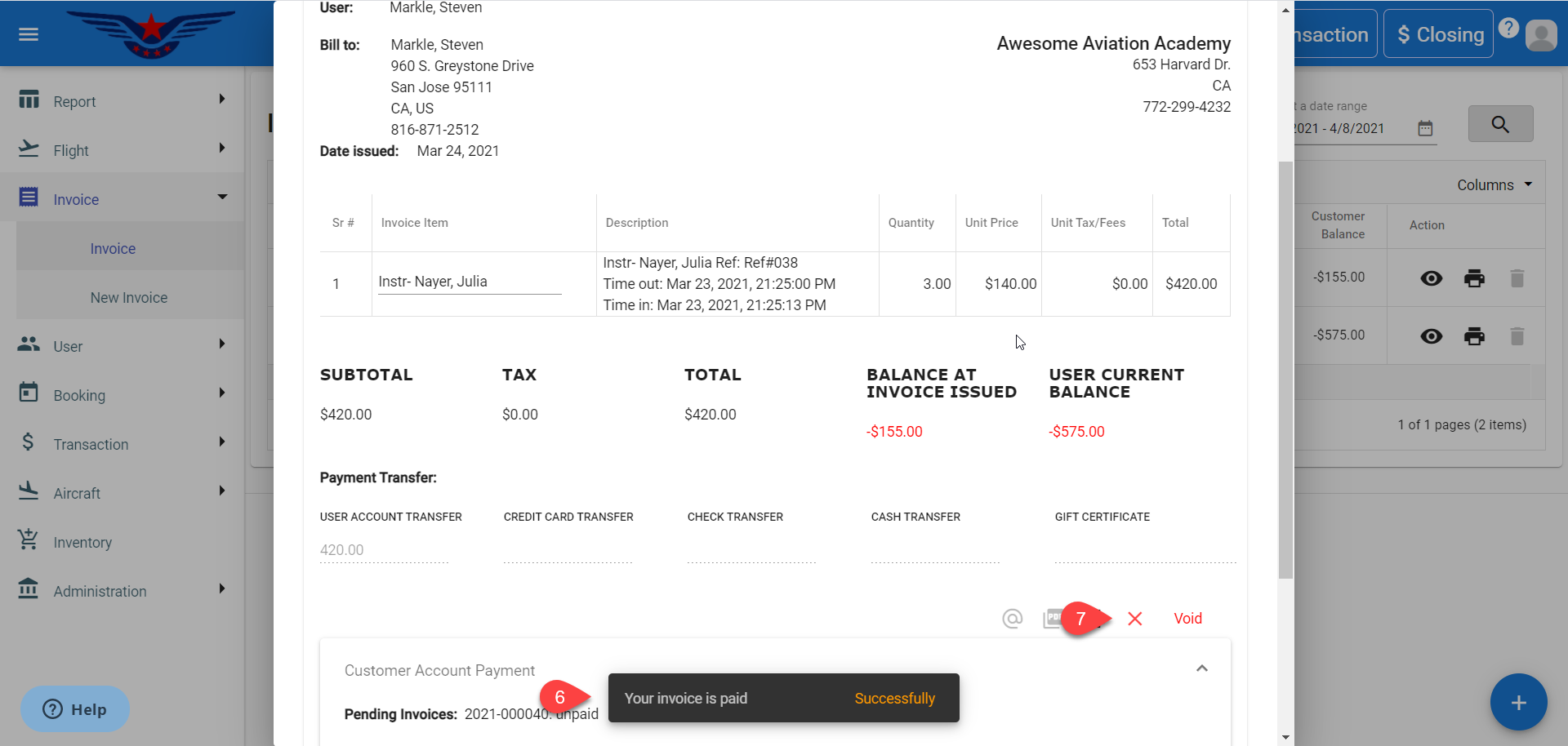
6. A success message will pop up on the bottom center of the screen.
7. Click on the X to close the Invoice sheet.
NOTE: If the invoice is made through Check In and is paid by the same user who has performed the Check In within the security relaxation duration set for the location, then the user need not enter the PIN again for paying invoice.
Comments
0 comments
Please sign in to leave a comment.