
If not signed in, kindly sign in into FBO Master.
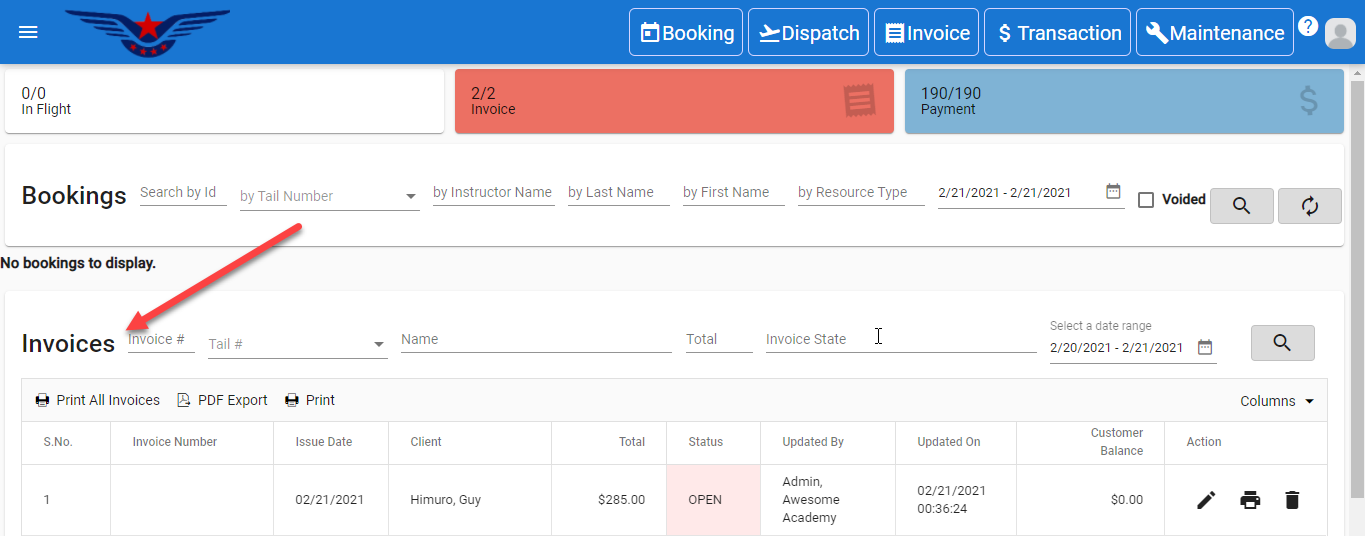
- Invoice list is displayed on the dashboard.
OR
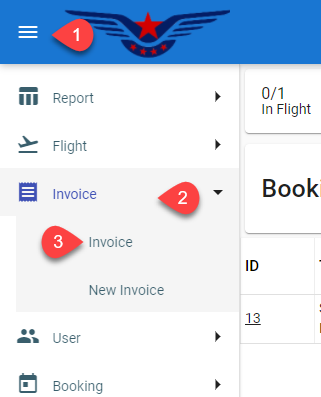
Click on the hamburger icon on the top left corner of the navigation bar[1]. Select Invoice main menu[2]. Click on the Invoice sub main menu[3].
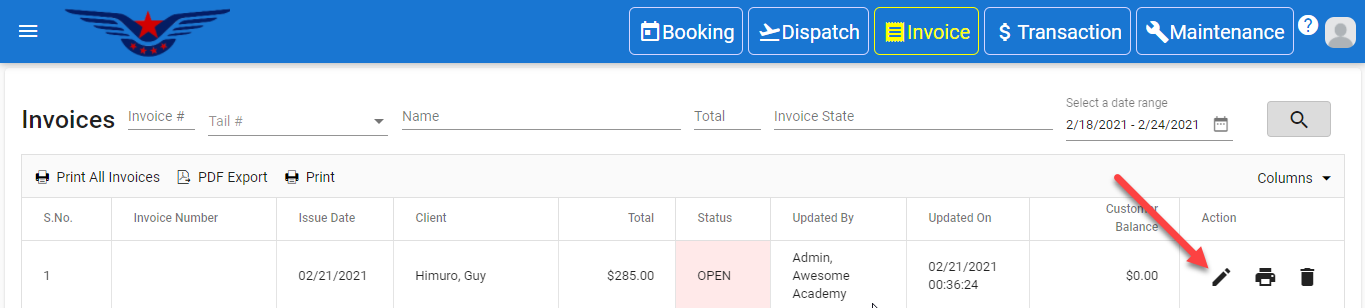
- Invoice list will be displayed. Click on the Pen icon under the action column of the Invoice list.
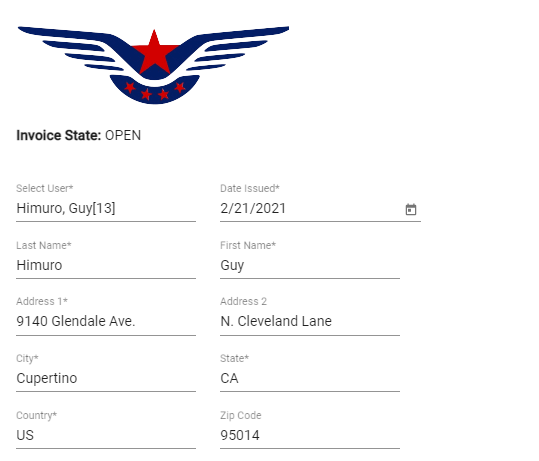
- The existing information will be auto filled/selected, make the desired changes in the personal information.
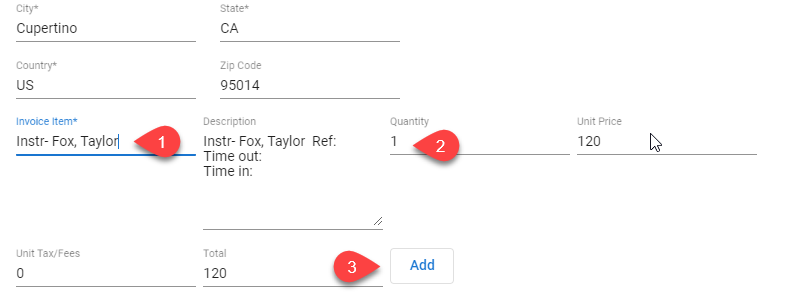
- New invoice item can also be added[1].
Invoice item quantity is by default 1, and can be changed[2].
Click on the Add button[3]
 .
.
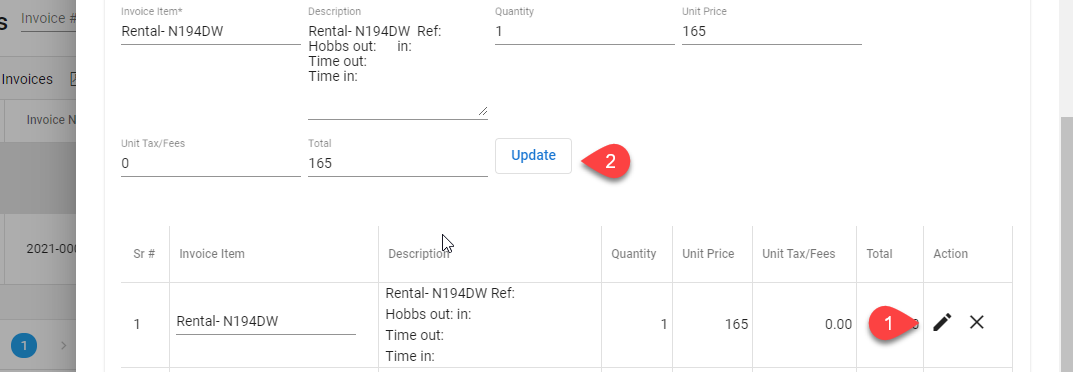
- Click on the Pen[1] button to edit the existing invoice item.The existing details of the invoice item will be auto filled, make the desired changes.
Click on the Update[2] button.
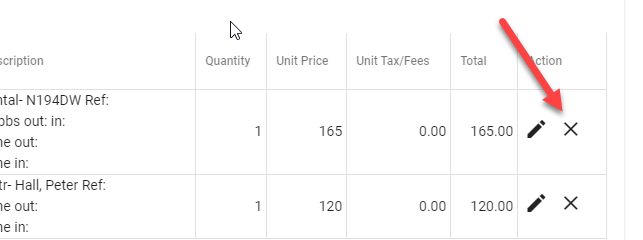
- Click on the X button to delete the existing invoice item.
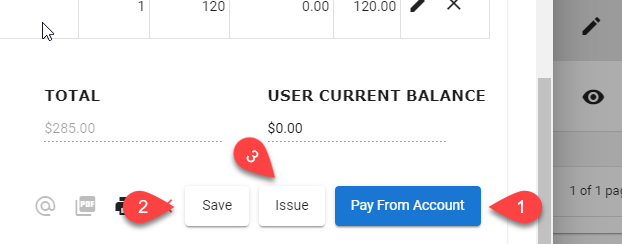
- Click on the Pay from Account button to pay the invoice from the account[1].
OR
Click on the Save button to save the invoice, invoice can be edited later anytime[2].
OR
Click on the Issue button to issue the invoice[3].
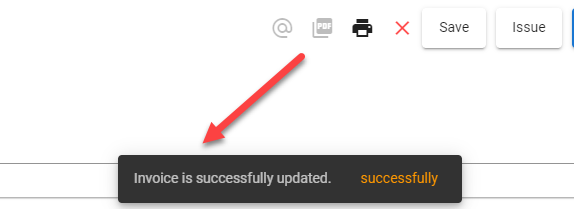
- A success message pops on the bottom center of the screen in correspondence to any of the Pay from Account, Save, Issue button clicked.
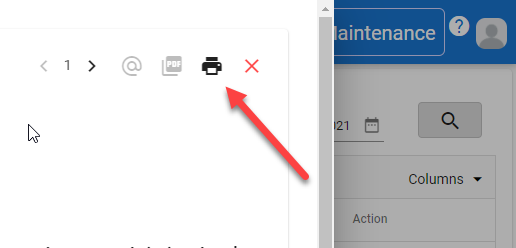
- Click on the Print icon to print the invoice.
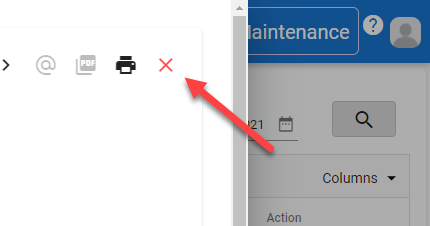
- Click on the X to close the Invoice sheet.
Comments
0 comments
Please sign in to leave a comment.