
If not signed in, kindly sign in into FBO Master.
- Click on the hamburger icon on the top left corner of the navigation bar. Select the Transaction main menu. Click on the Customer Account Recharge sub main menu.
- Customer Account Recharge sheet will be displayed.
- Date/Time field will be auto selected to the current date/time and can be changed.
- Select a customer from Customer drop down list (mandatory field).
- Select Gift Certificate payment method from Payment Method drop down list (mandatory field).
- Gift Certificate# field will be enabled. Enter the Gift Certificate#.
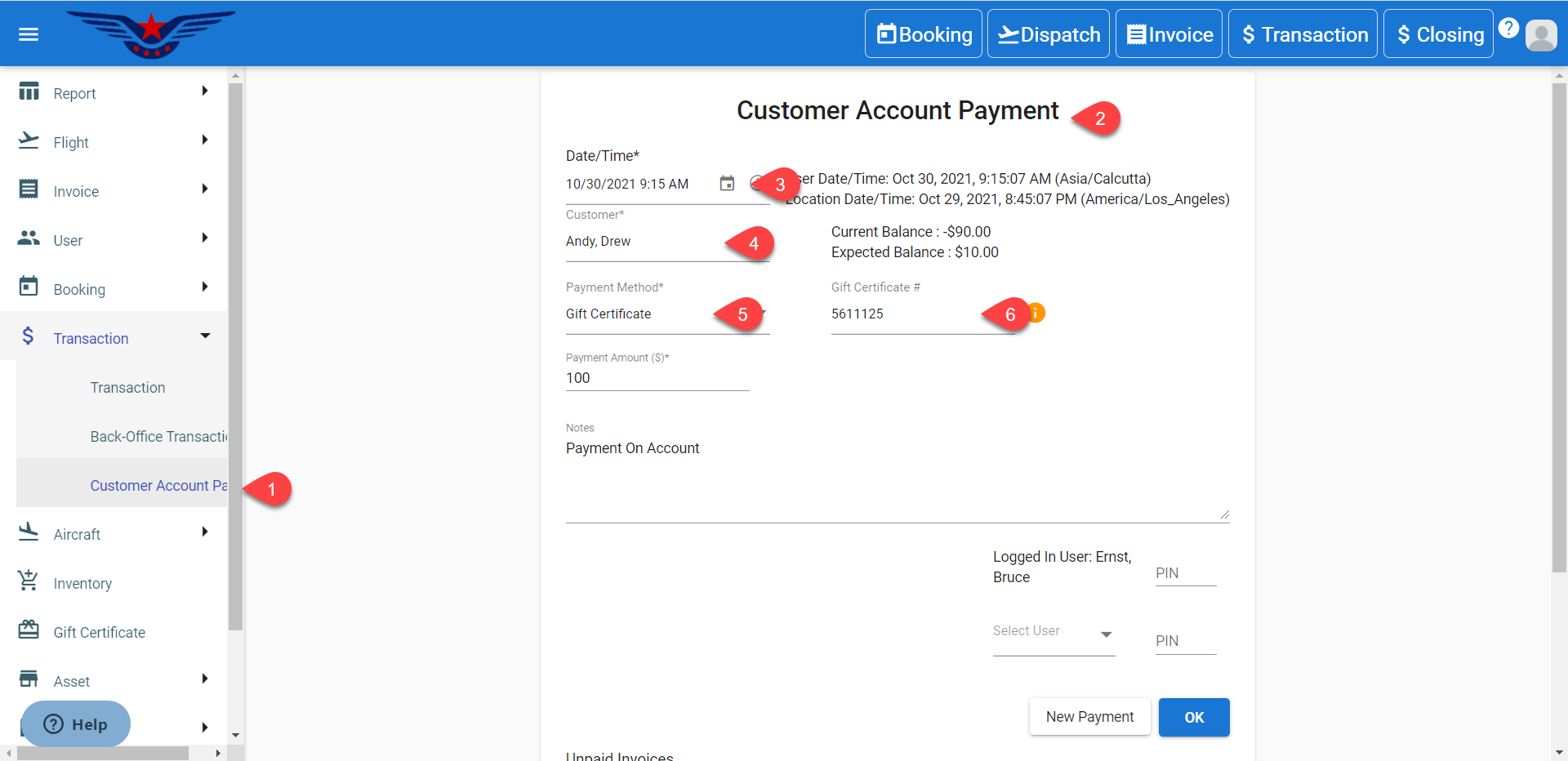
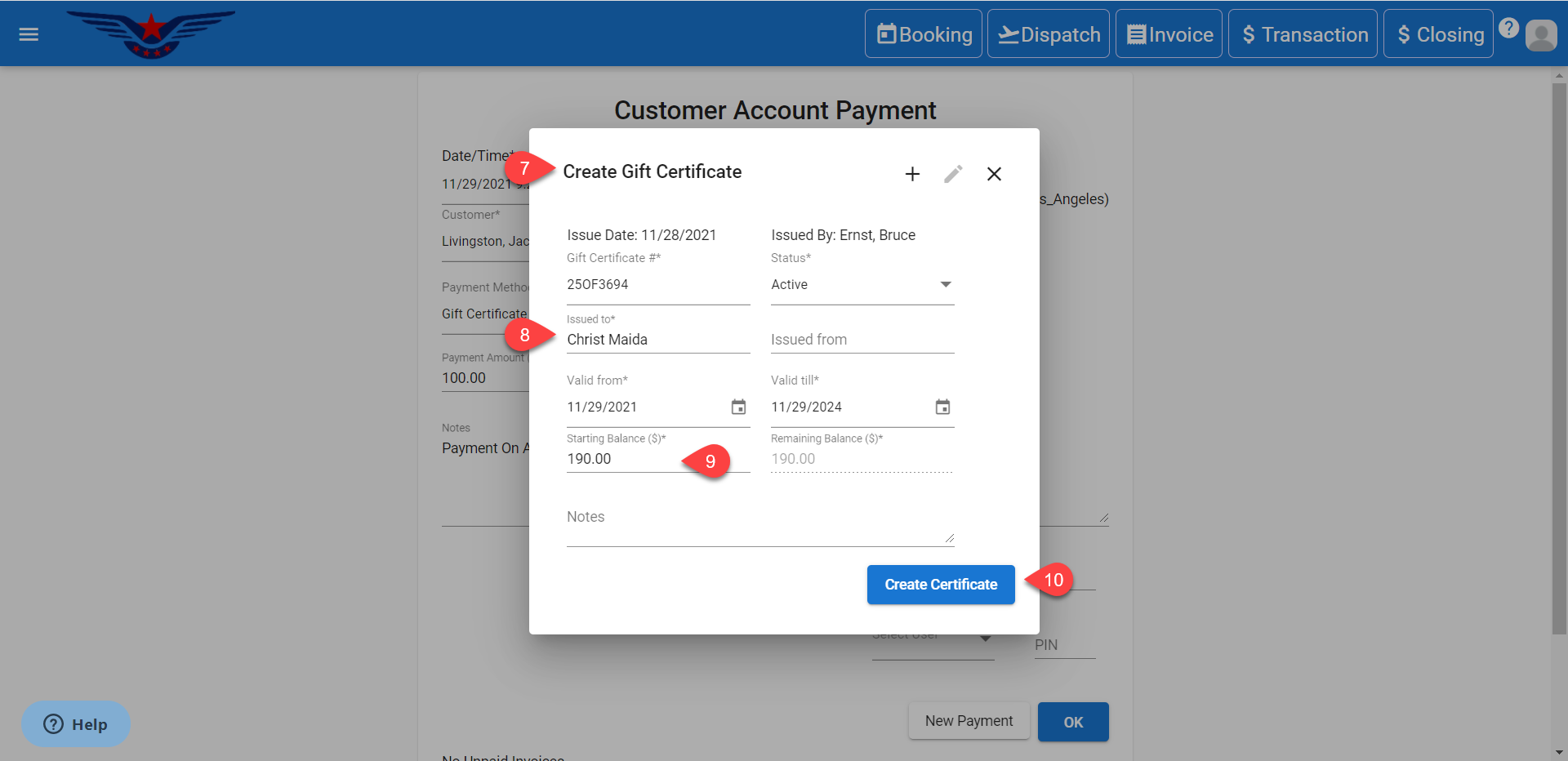
- If the entered gift certificate exists, it will be displayed in the drop down list. If the entered Gift Certificate does not exist, the i icon on right side of the Gift Certificate# field will be enabled and a sheet to create gift certificate will be displayed.
- Enter the name in Issued to field.
- Enter the Starting Balance($). Remaining Balance($) will be auto filled with respect to Starting Balance, all the other details will be auto filled. By default, Status will be Active.
- Click on Create Certificate button.
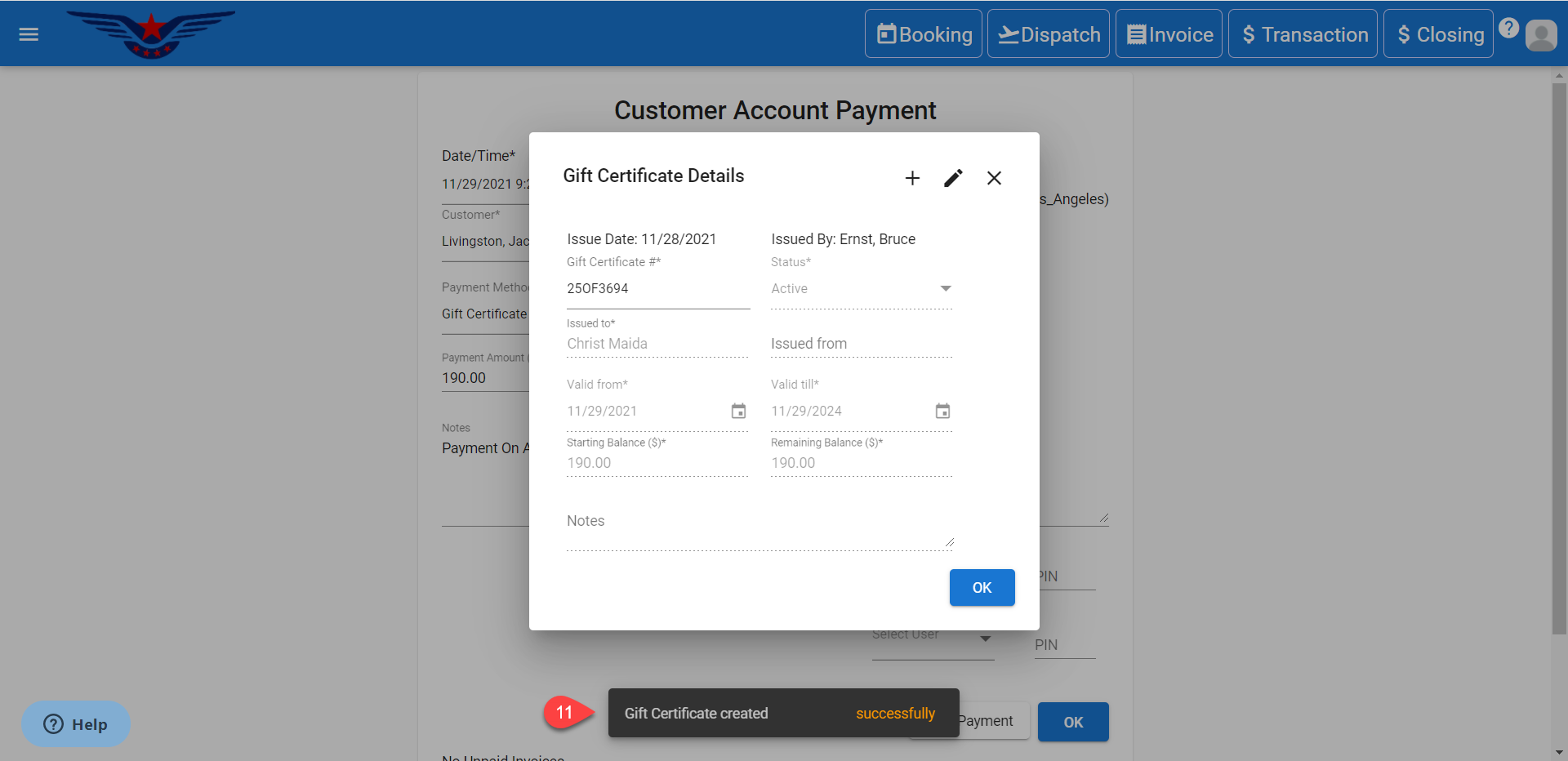
- A success message will be displayed for gift certificate creation.
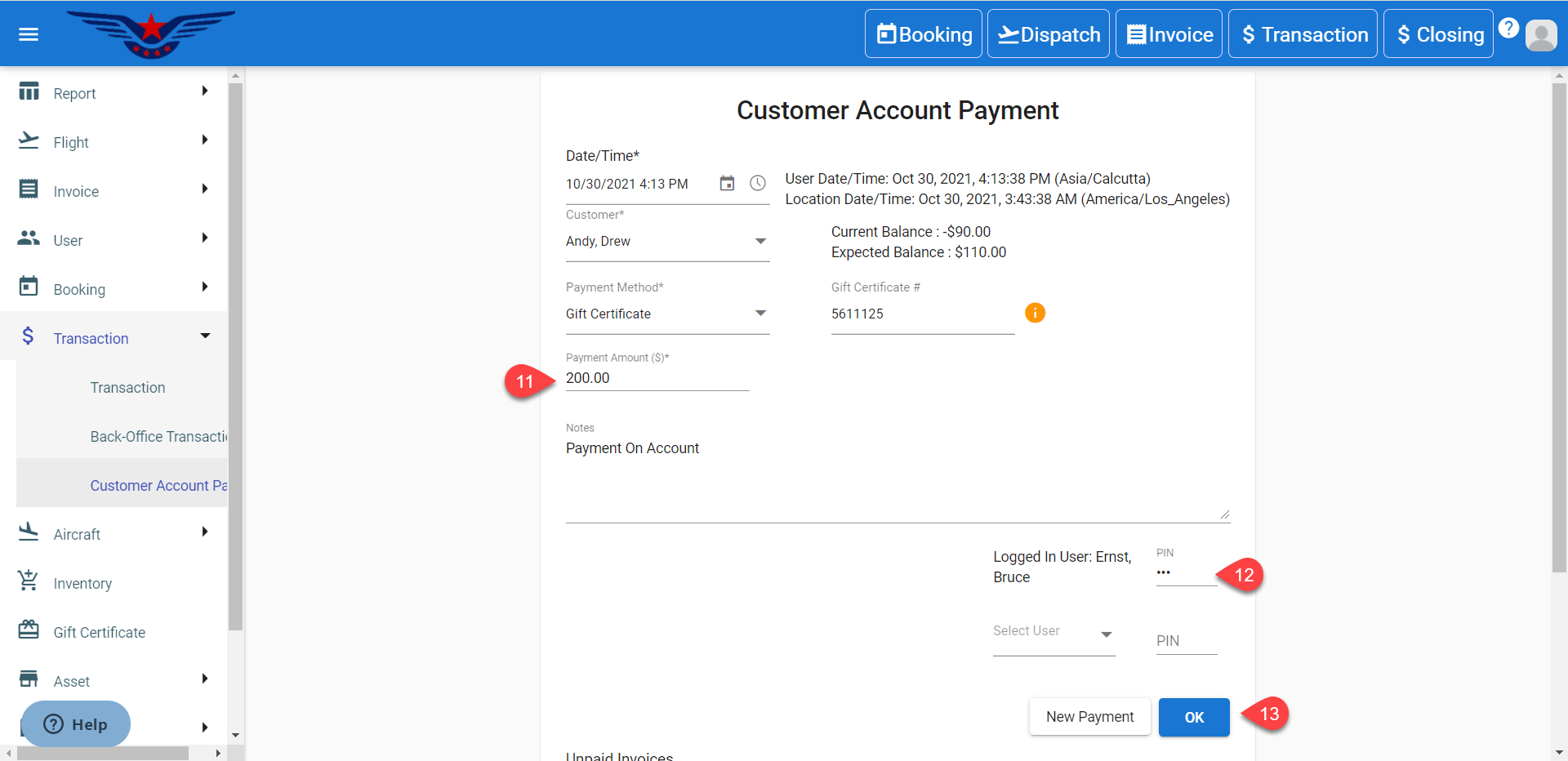
- Payment Amount($) will be auto filled and can be changed.
- Enter the User's PIN.
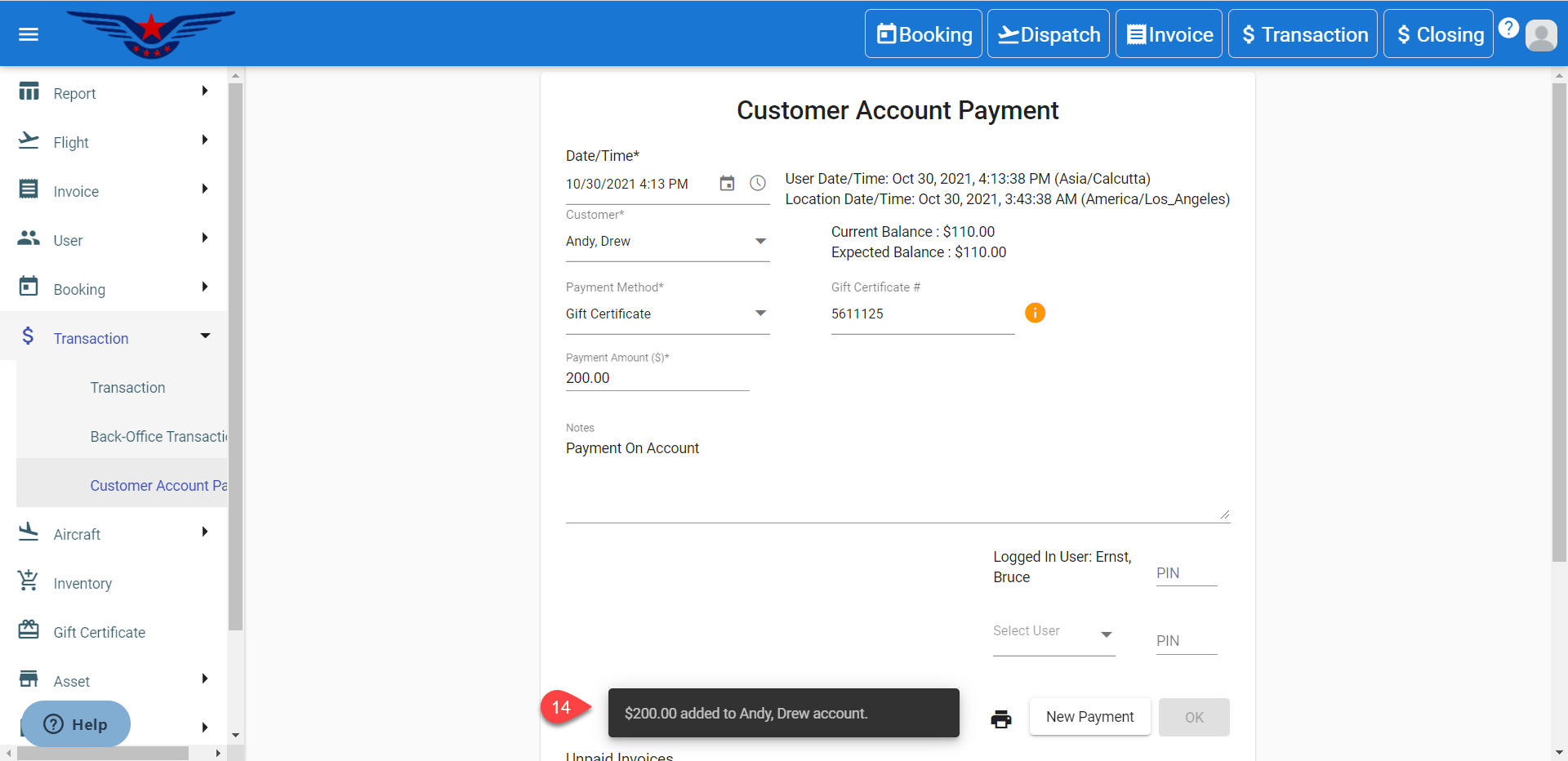
- Click on the OK button.
- A success message will be displayed.
Comments
0 comments
Please sign in to leave a comment.