
If not signed in, kindly sign in into FBO Master.
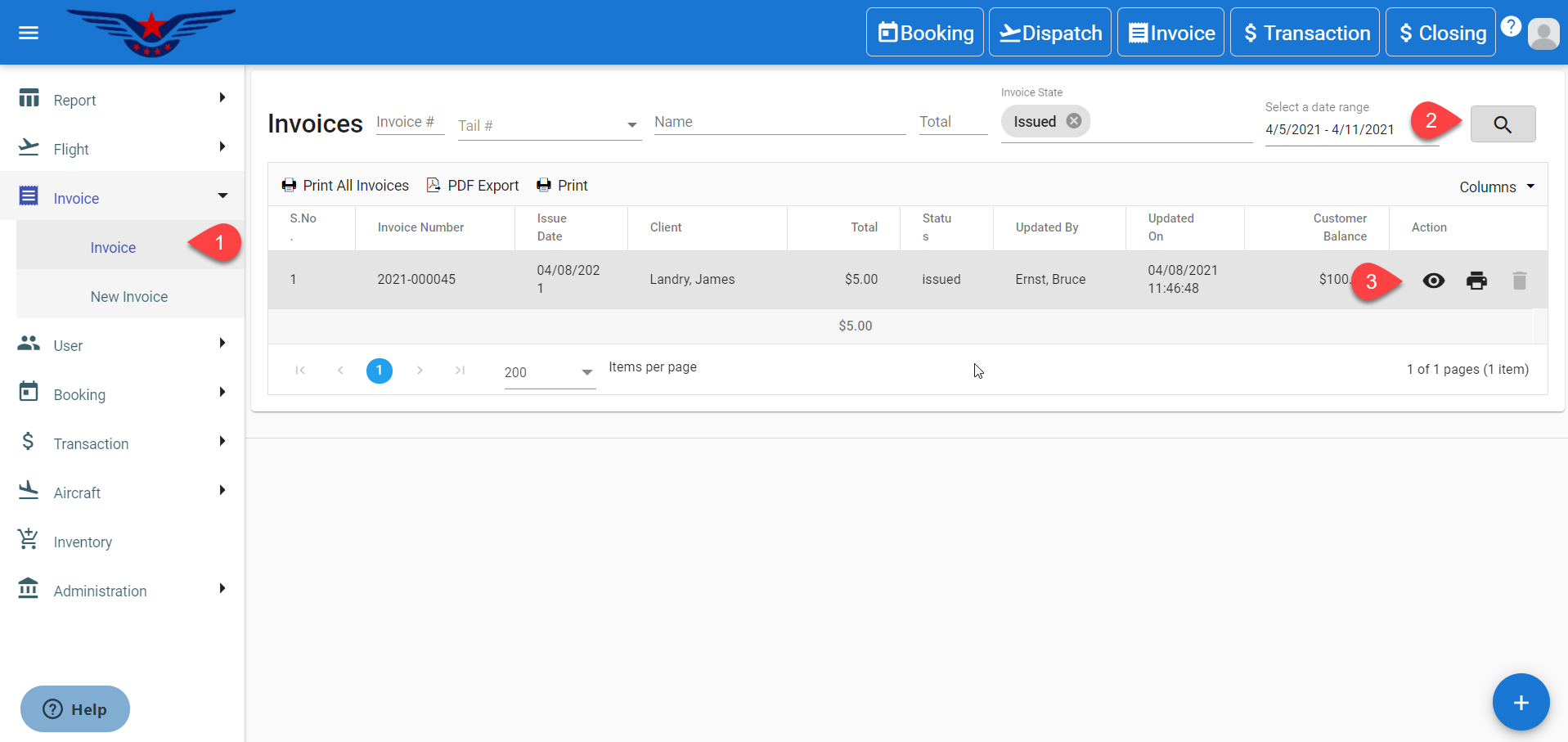
- Click on the hamburger icon on the top left corner of the navigation bar. Select Invoice main menu. Click on Invoice sub menu.
- Invoice list will be displayed. Search in the list for the wrong invoice through Invoice Number, Tail Number, Client Name, Invoice State, Date range, click on the Search icon.
- Click on the Eye icon under the Action column in the row of the wrong invoice.
- The view invoice popup will be displayed.
- Click on the Void button to navigate through the Invoice Cancellation section.
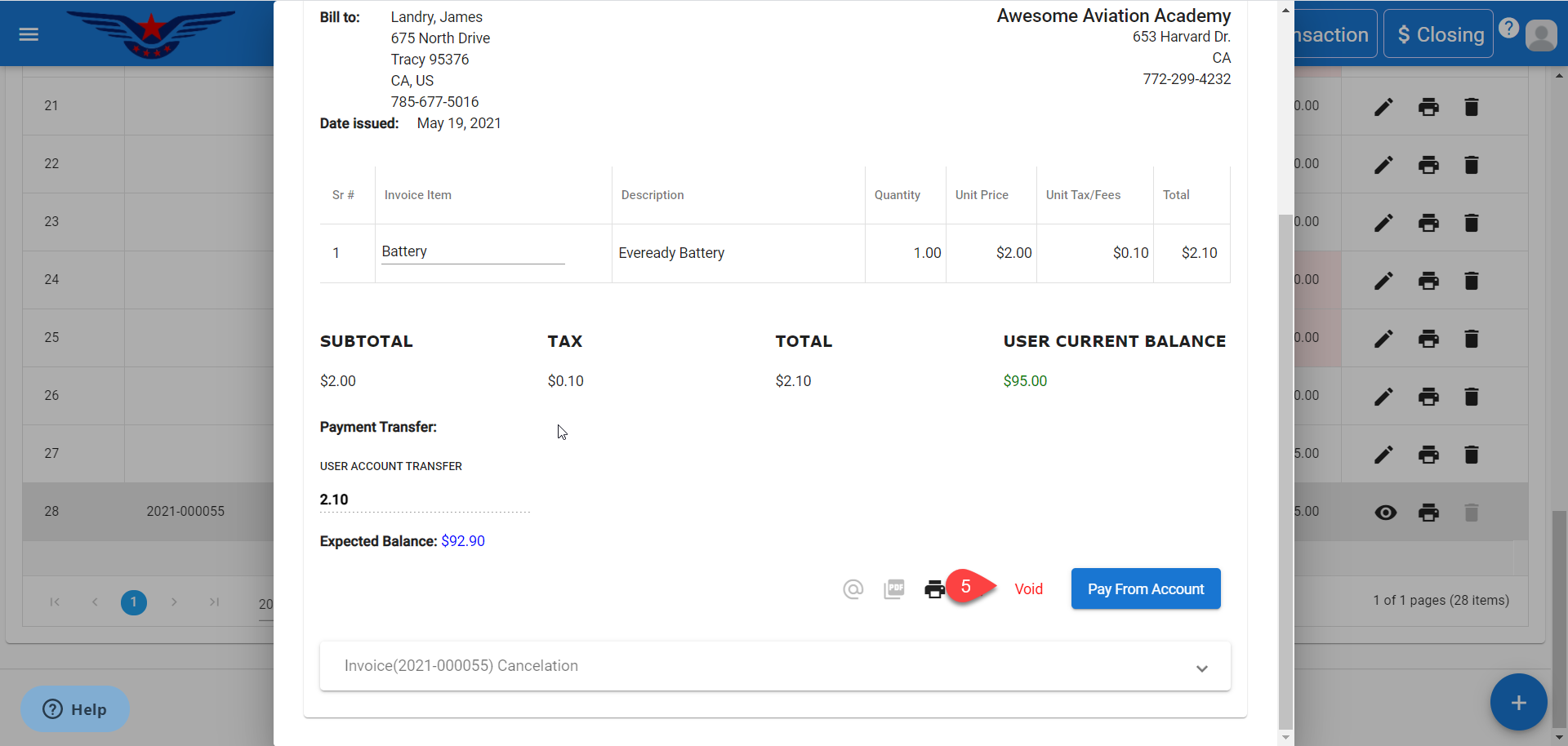
- In the Invoice Cancellation section enter a valid reason for voiding the invoice (although it is not mandatory, yet it is preferred to mention the reason).
- Click on the Void Invoice button.
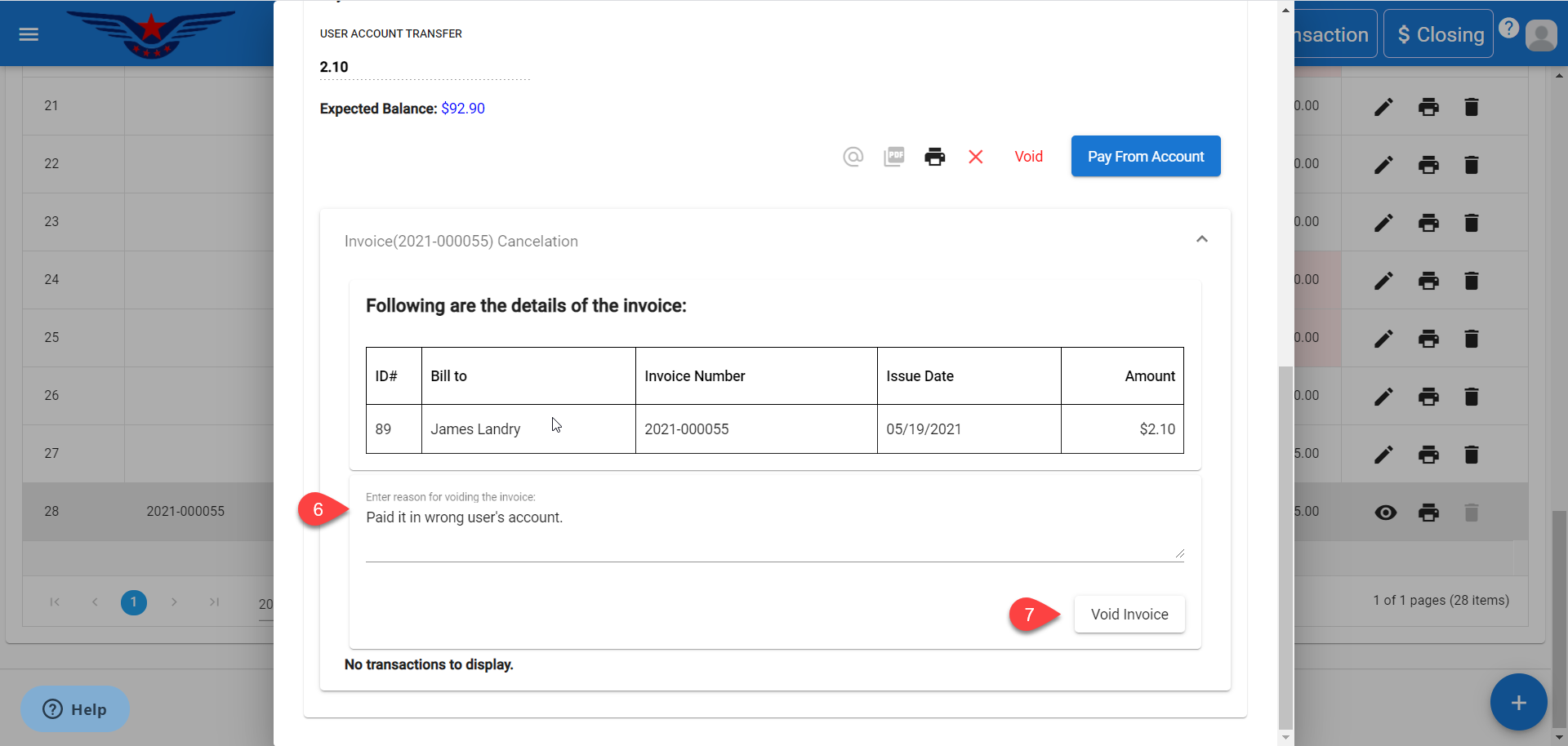
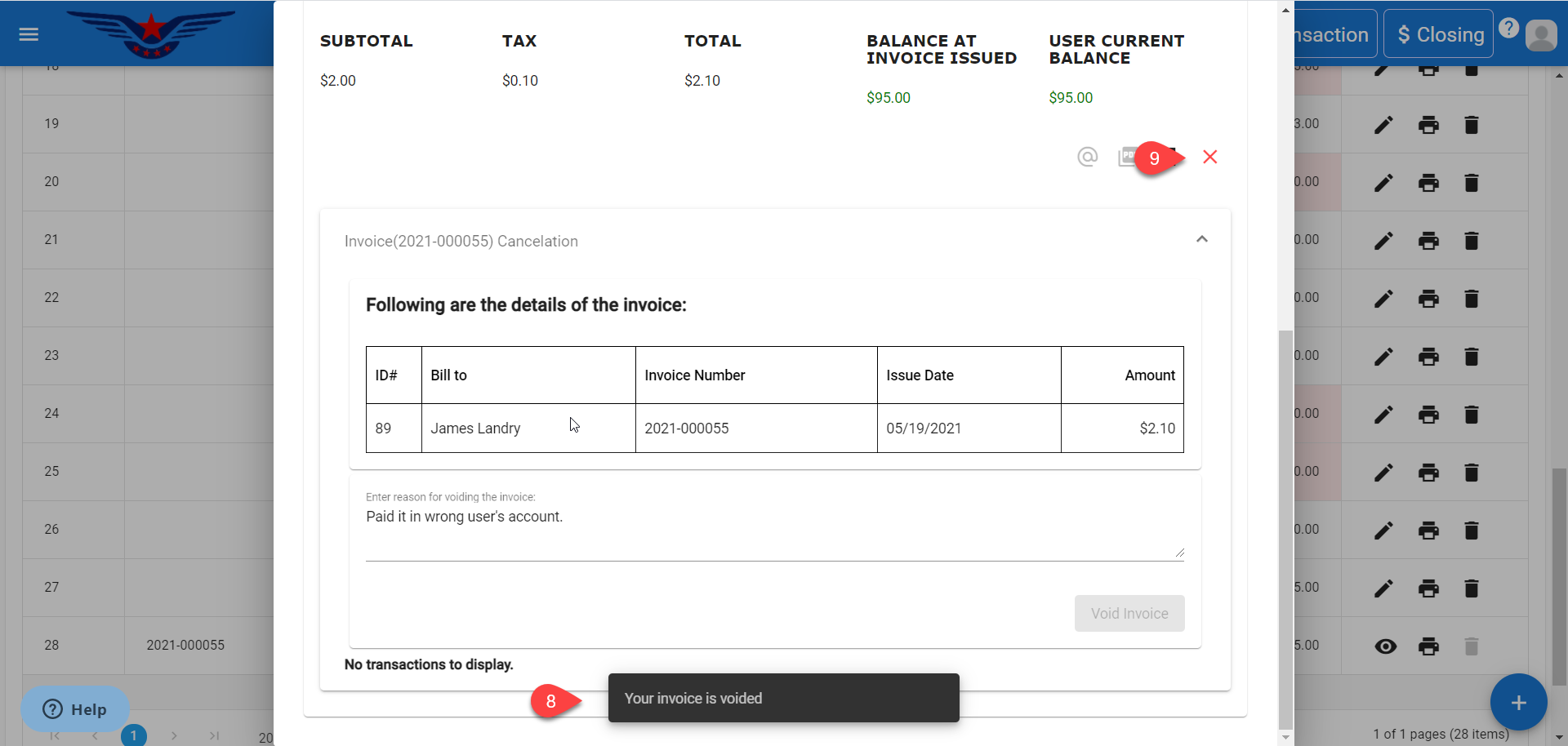
- The Invoice Voided successfully message will be displayed.
- Click on the X to close the invoice sheet.
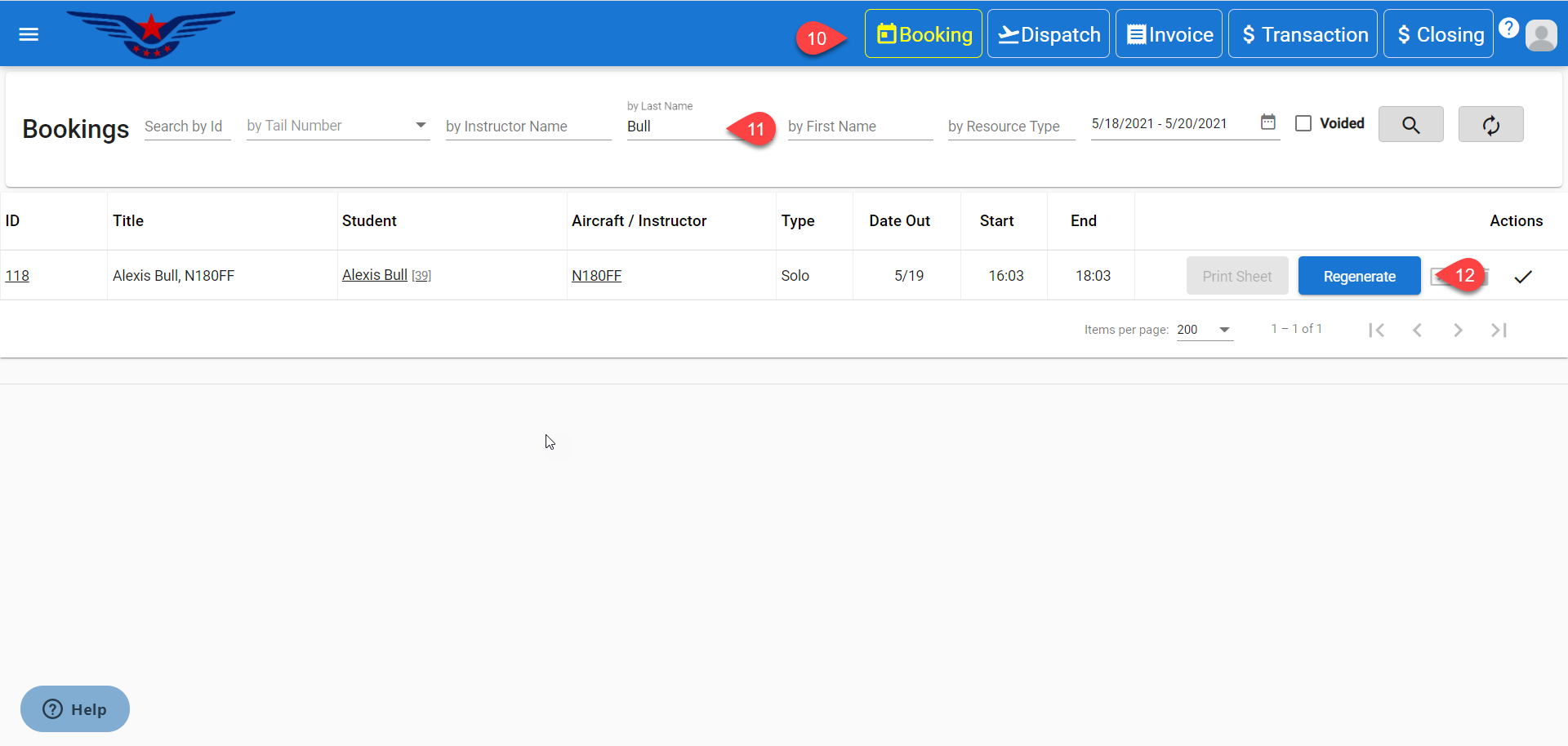
- Click on the Booking menu item in the top navigation bar.
- Booking list will be displayed. Search in the list for the booking of that Voided Invoice by Booking Id, Tail Number, Instructor Name, First Name, Last Name, Resource Type, Date Range etc. Click on Search icon.
- Click on the Regenerate button under the Action column in the row of the desired booking.
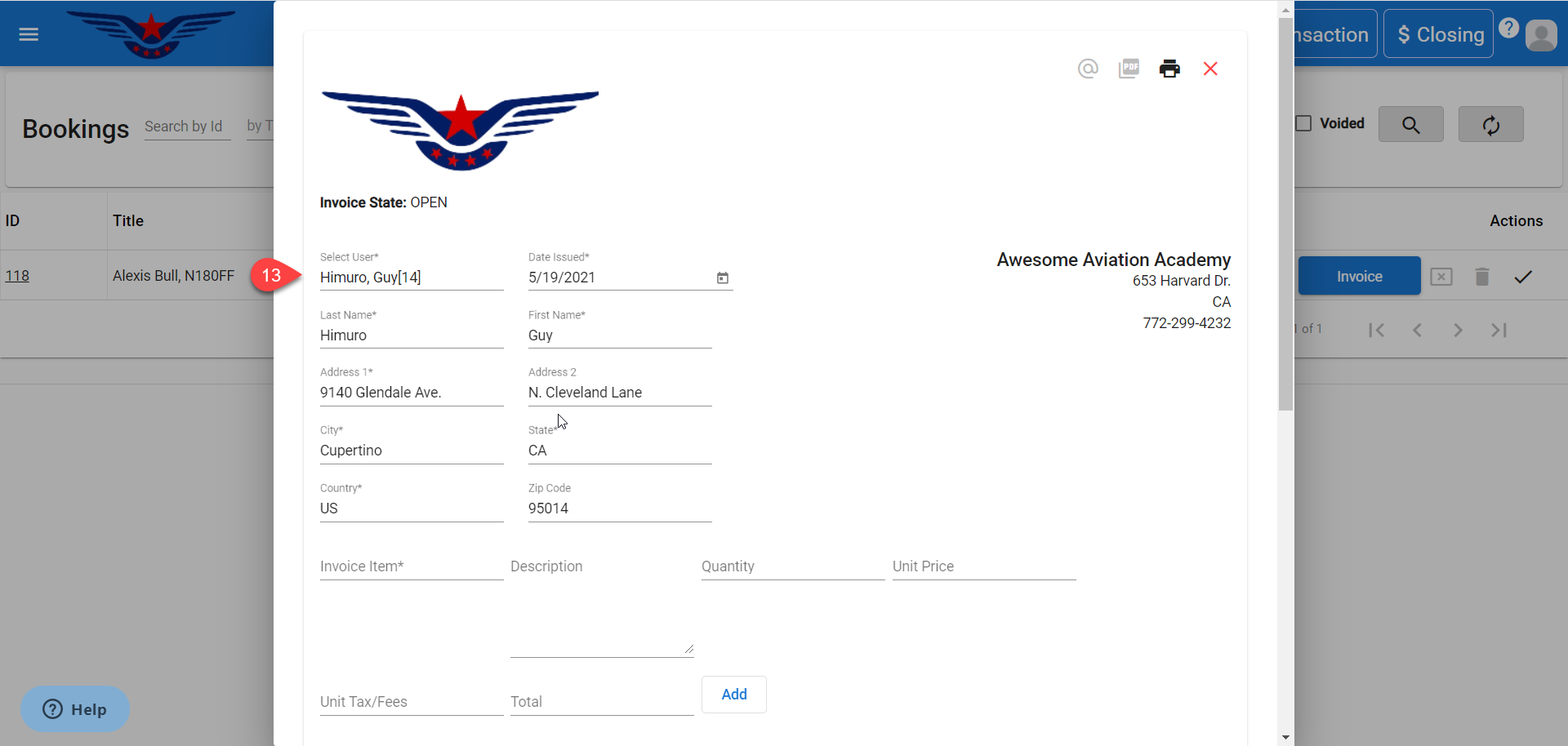
- The edit invoice popup will be displayed. Select the correct user from the Select User drop down list.
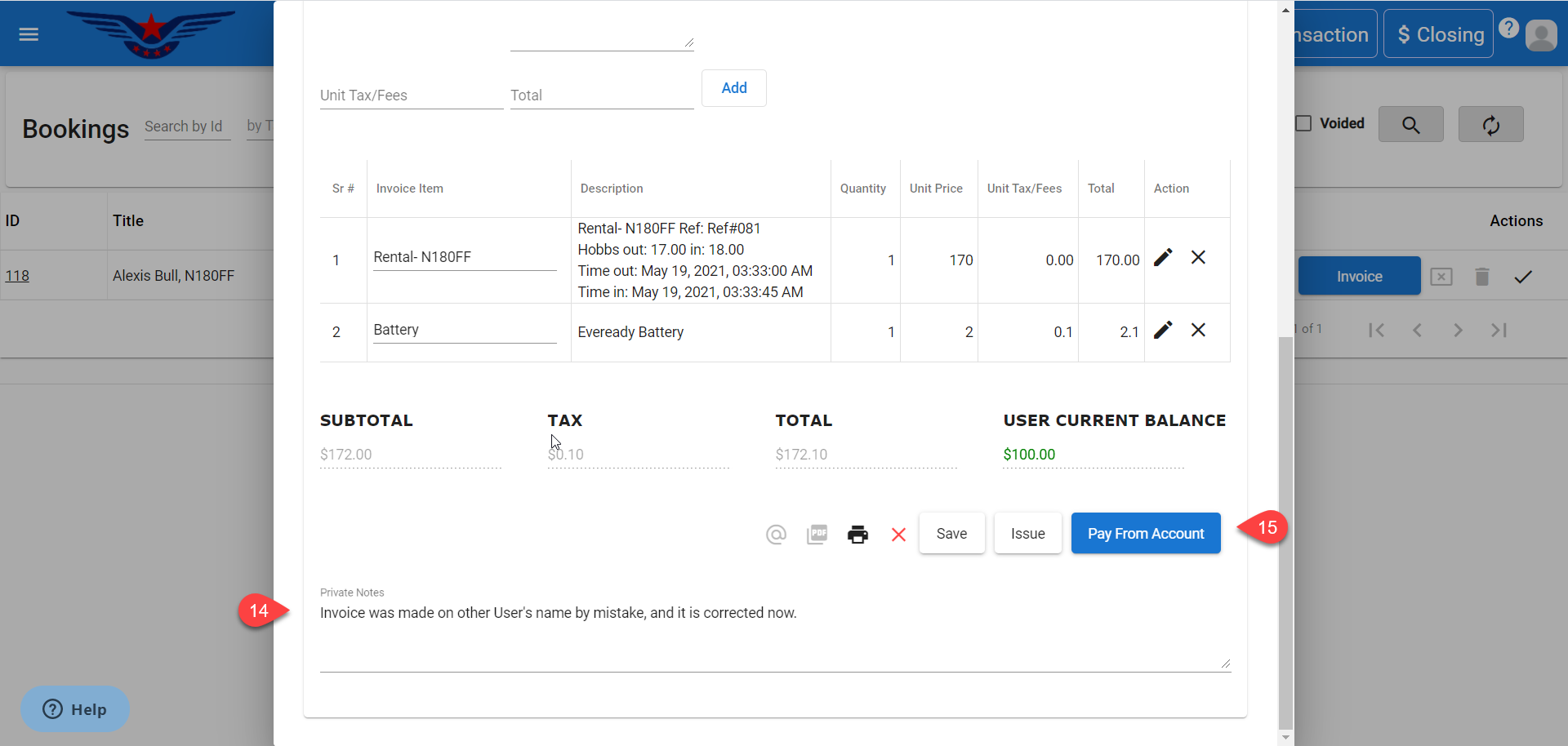
- Mention the appropriate details in the Private Notes for future reference.
- Click on the Pay From Account button.
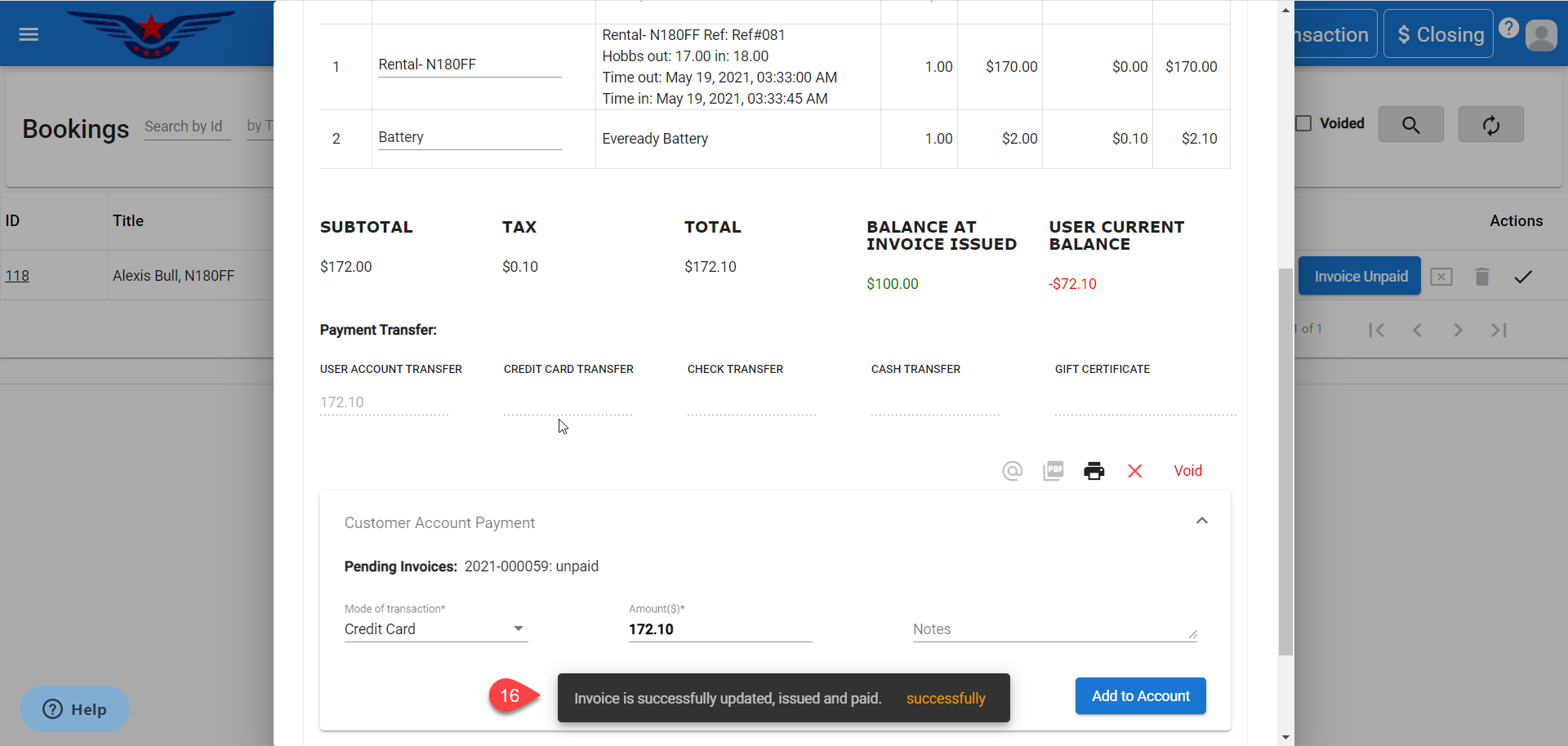
- Invoice paid successfully message will pop up on the bottom center of the screen.
Comments
0 comments
Please sign in to leave a comment.